Module 3
Formstorming
Weekly Activity Template · Physical Computing · Makey Makey + p5.js · Media Motion and the Body
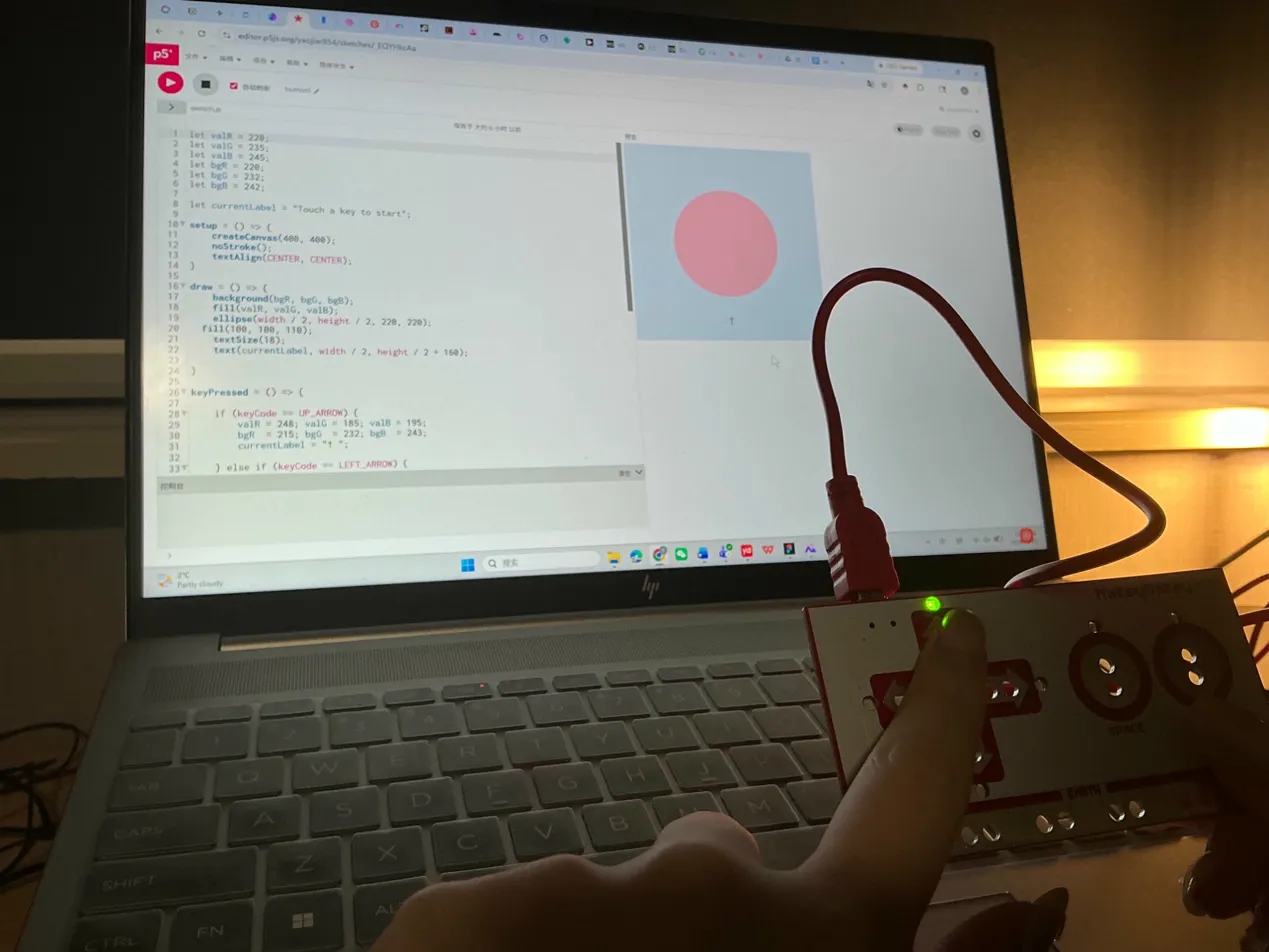
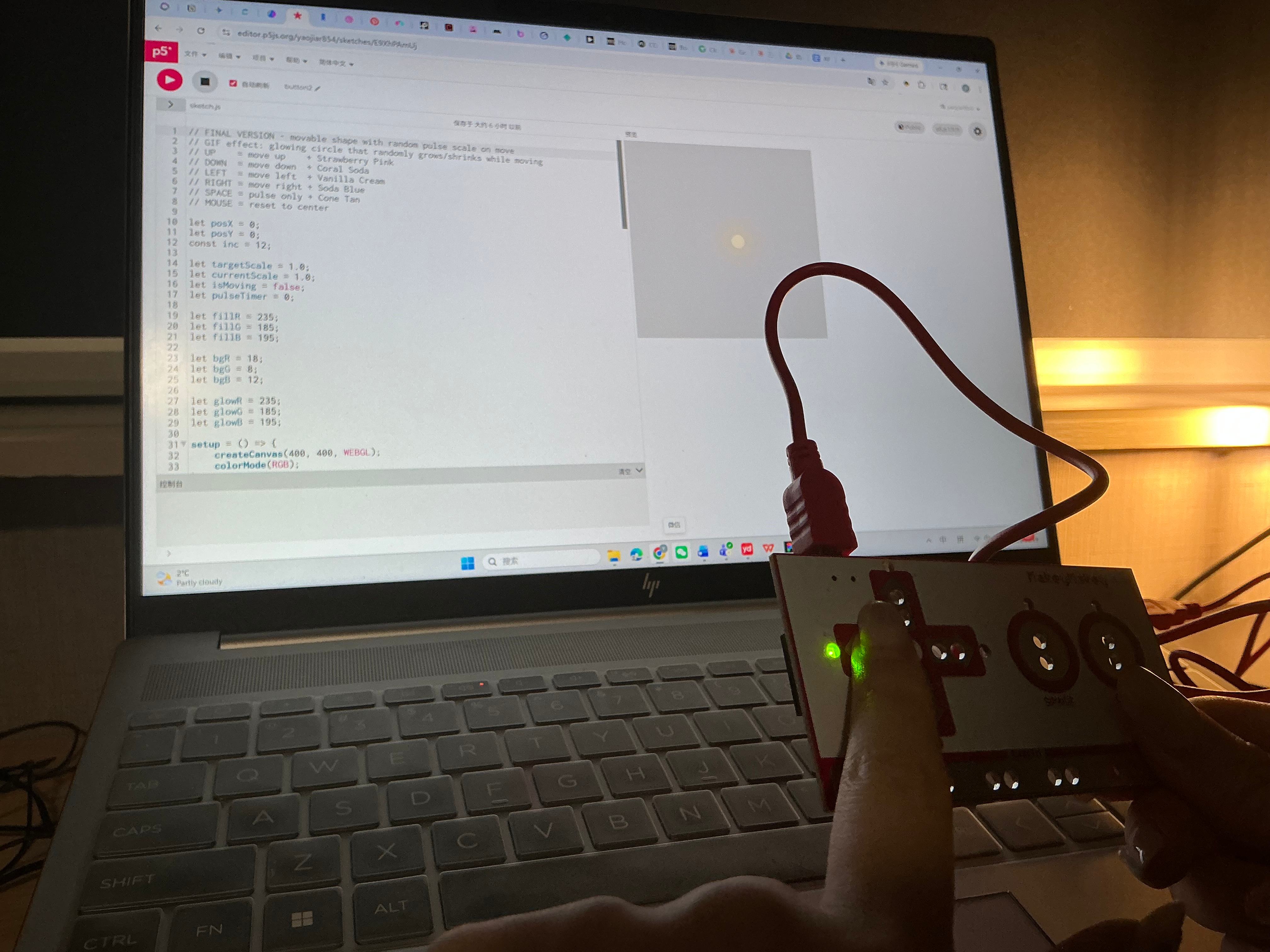
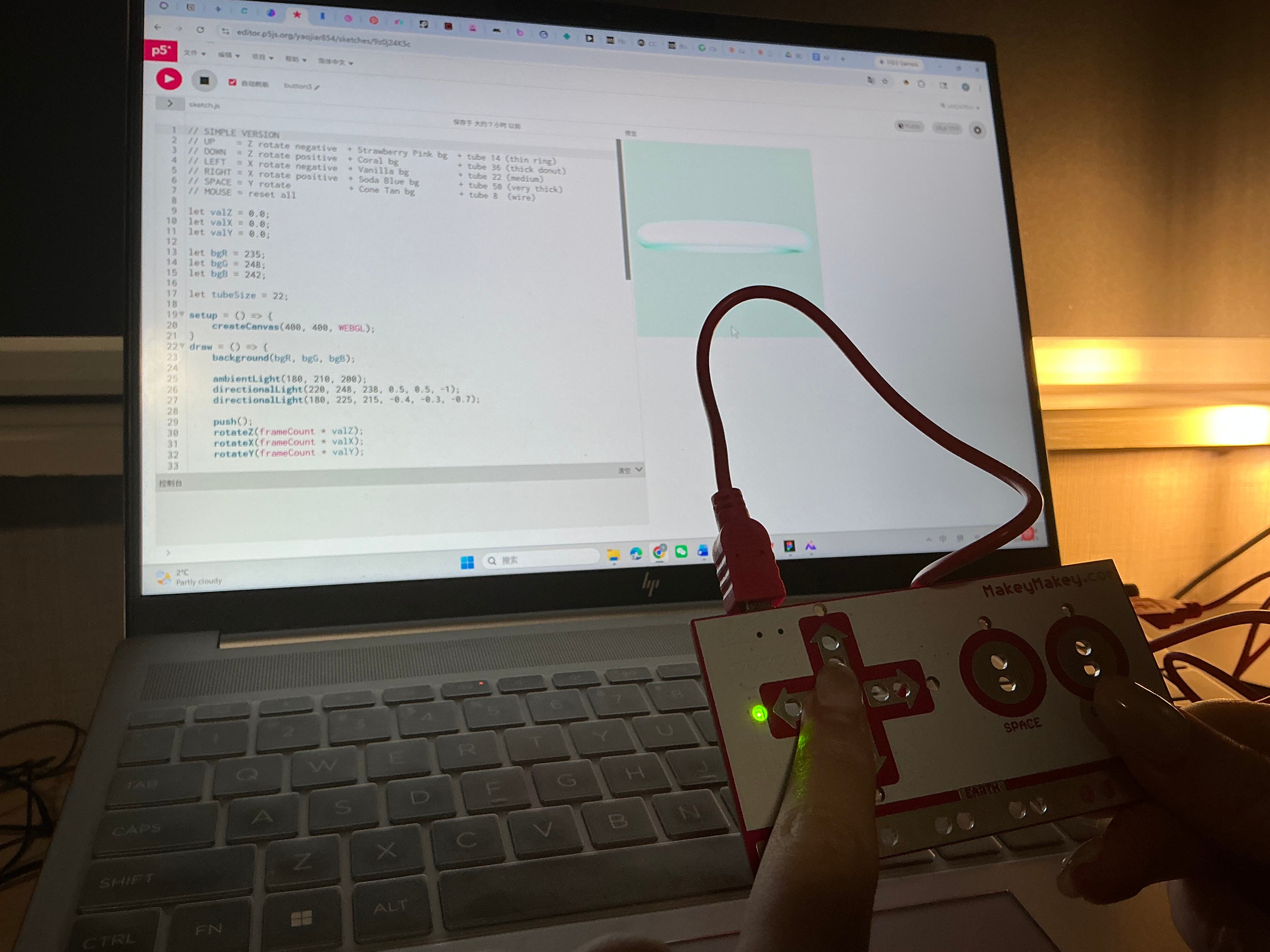
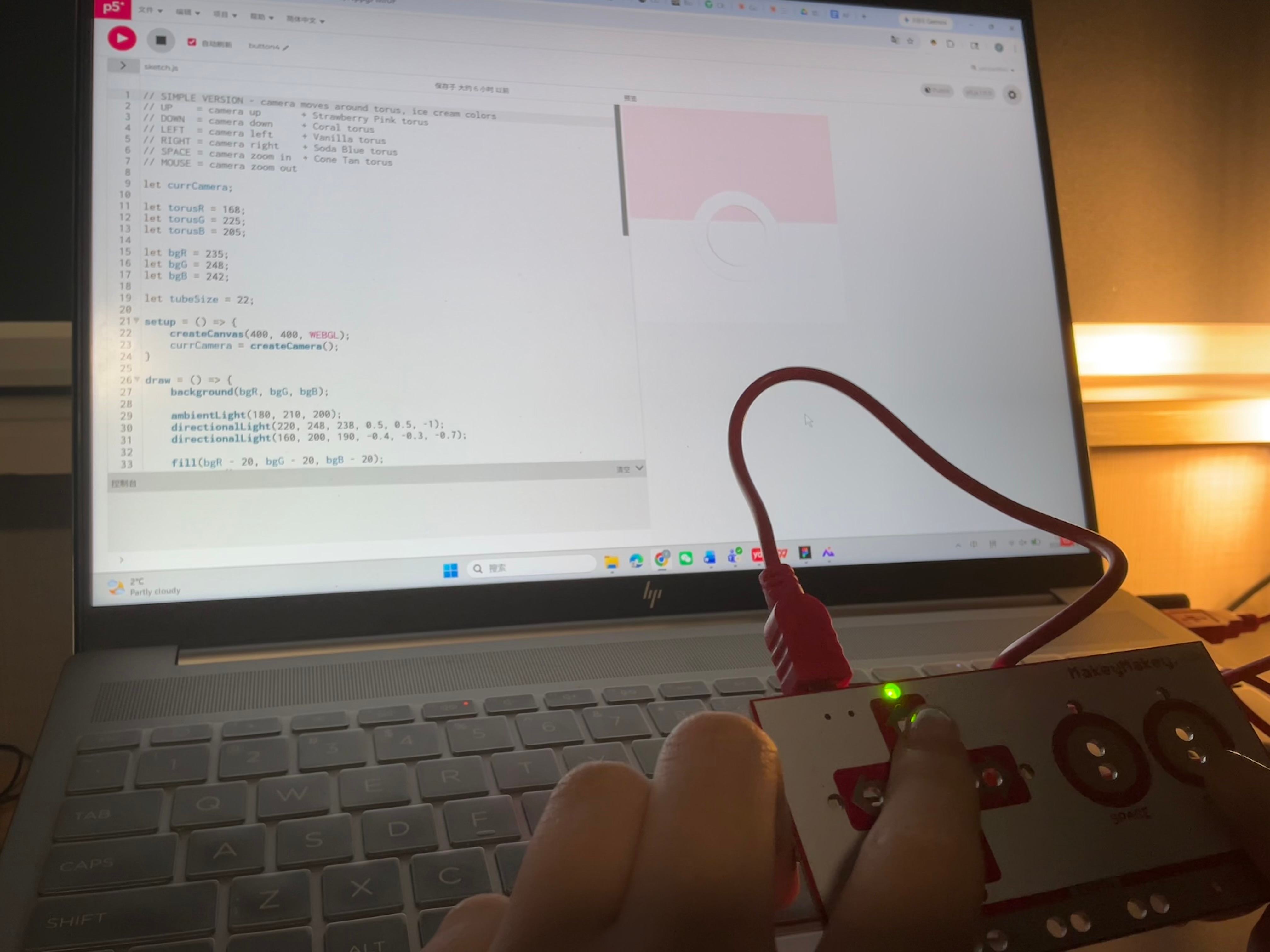
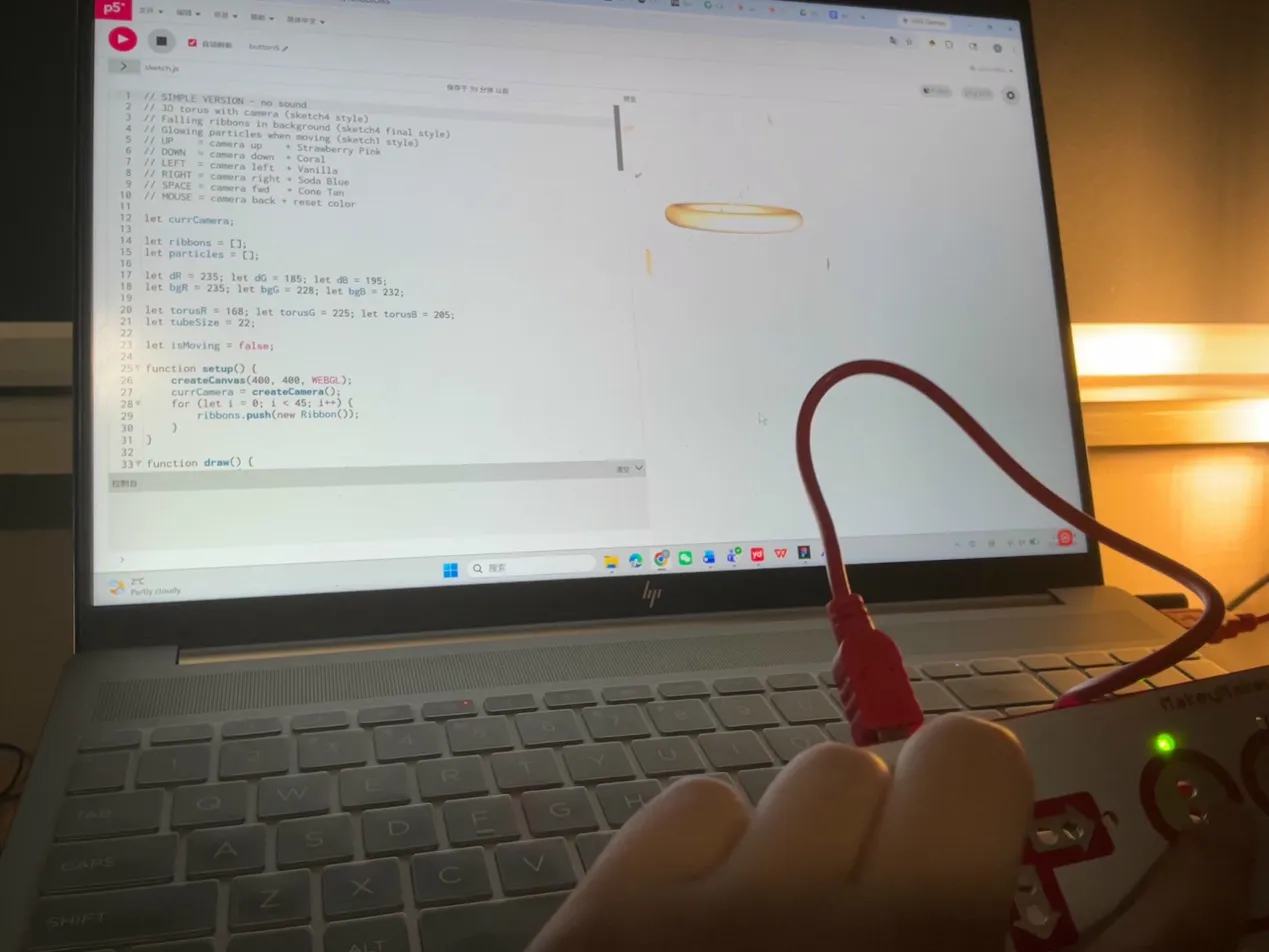
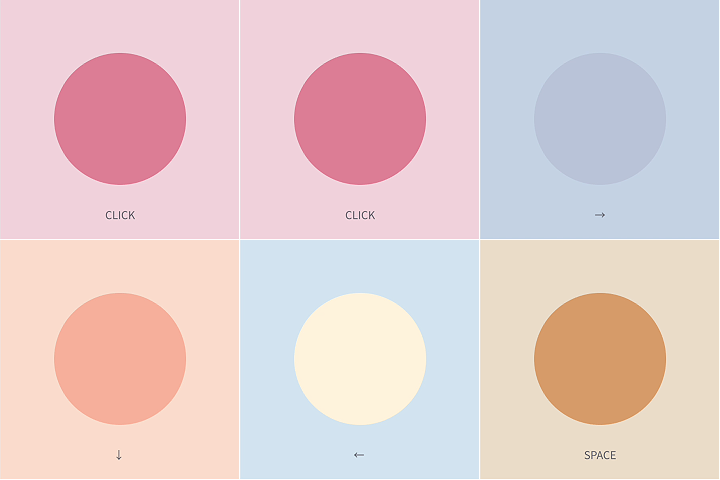
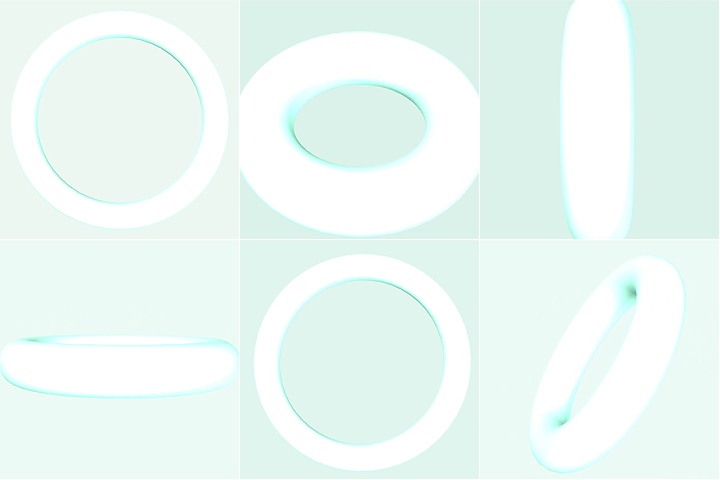
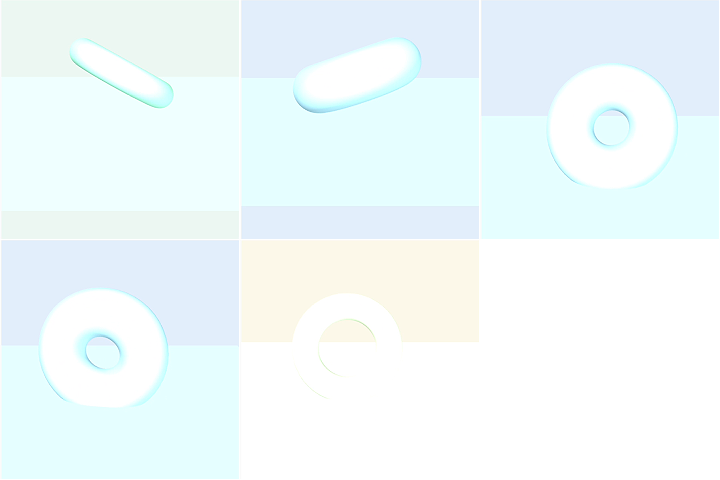
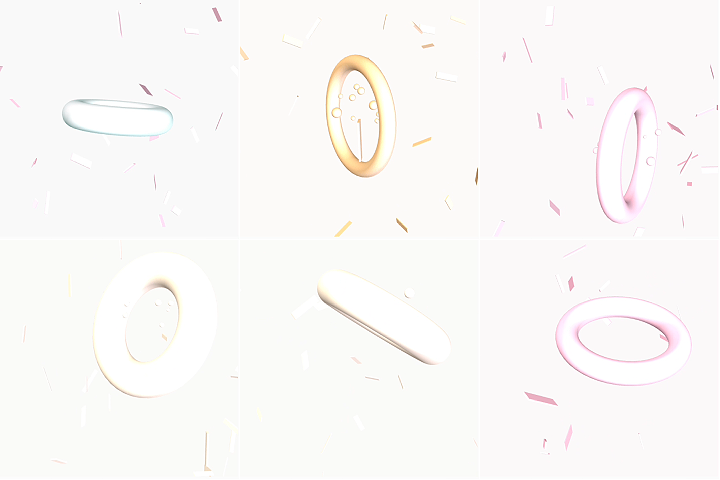
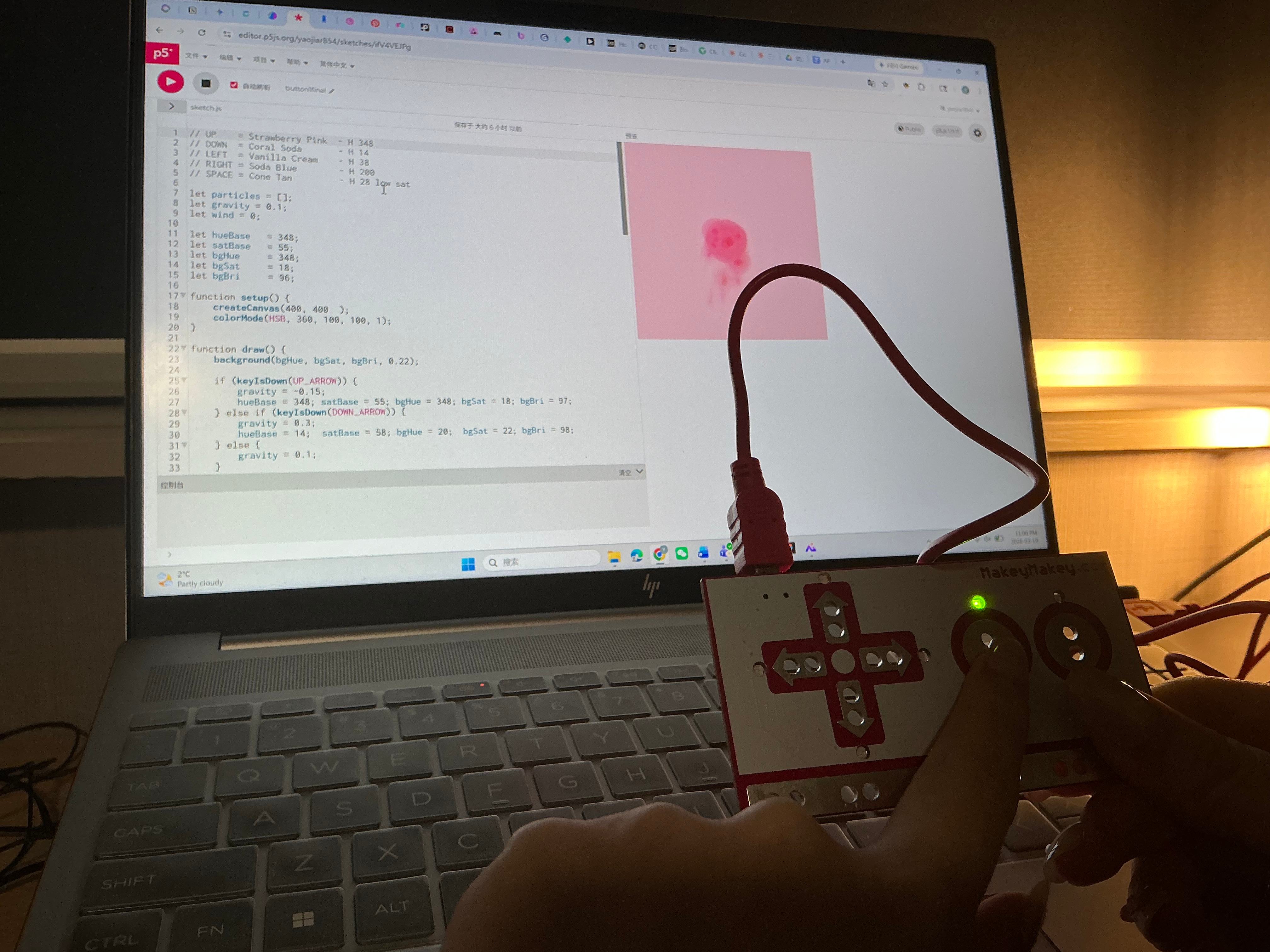
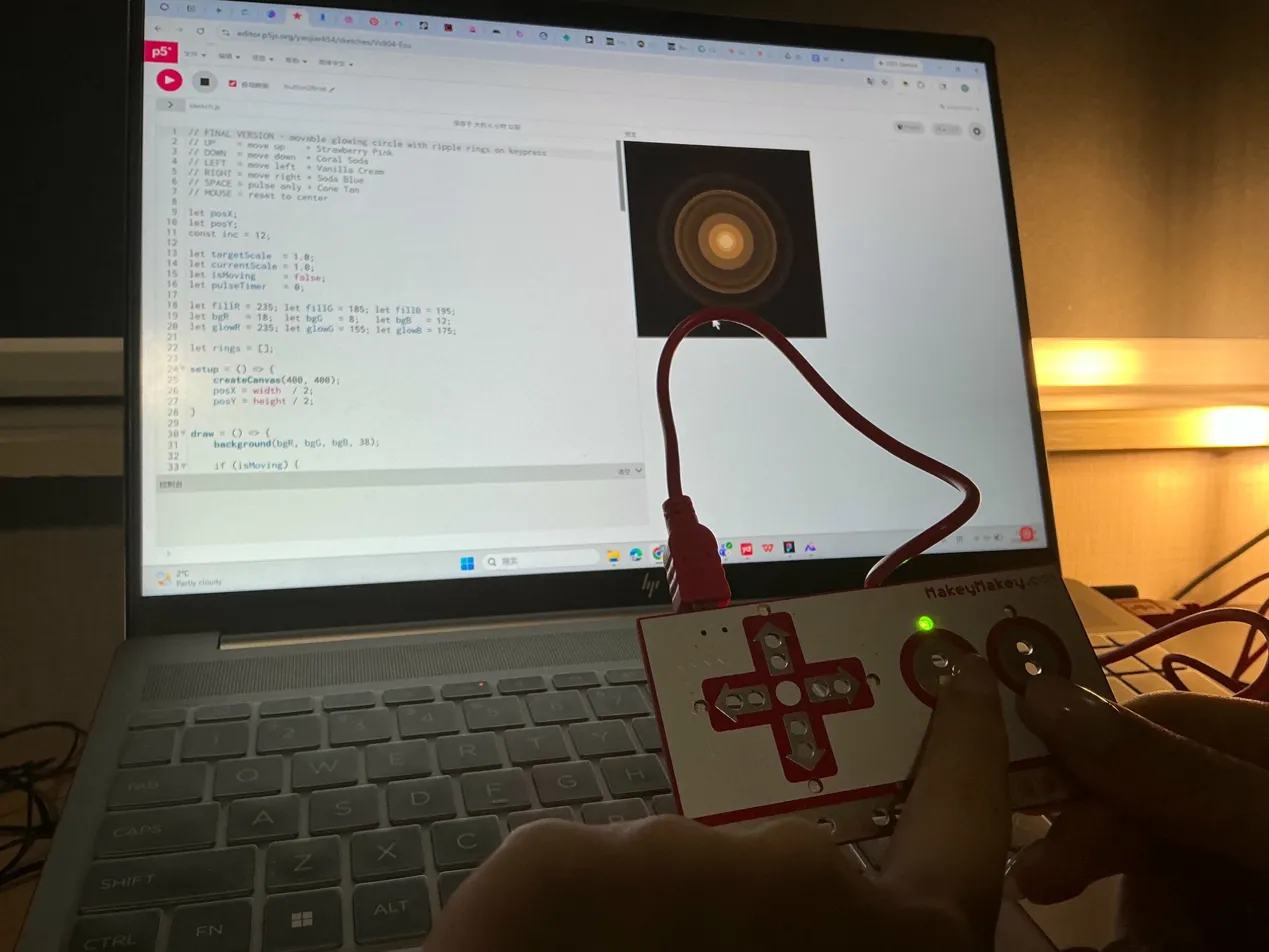
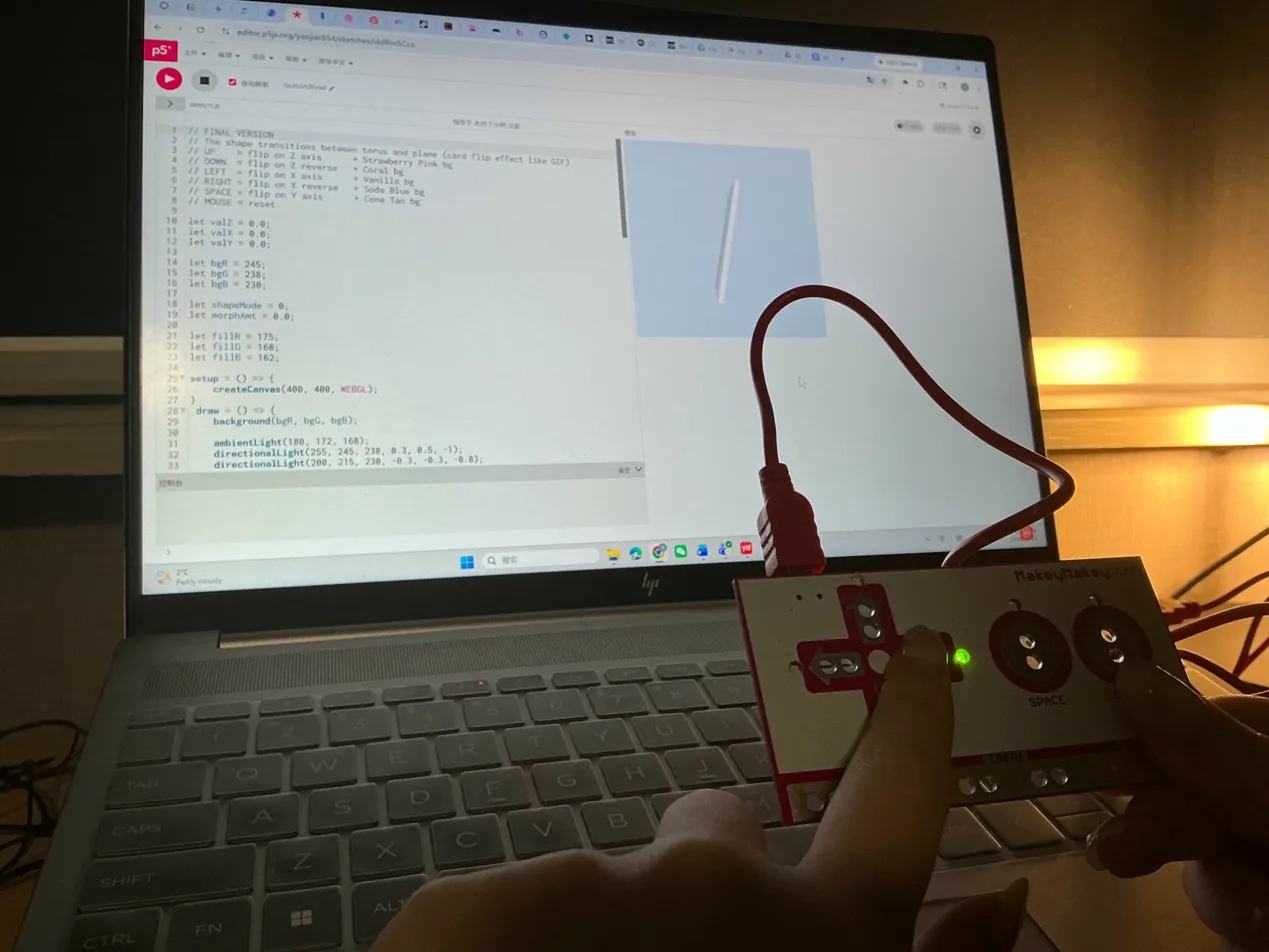
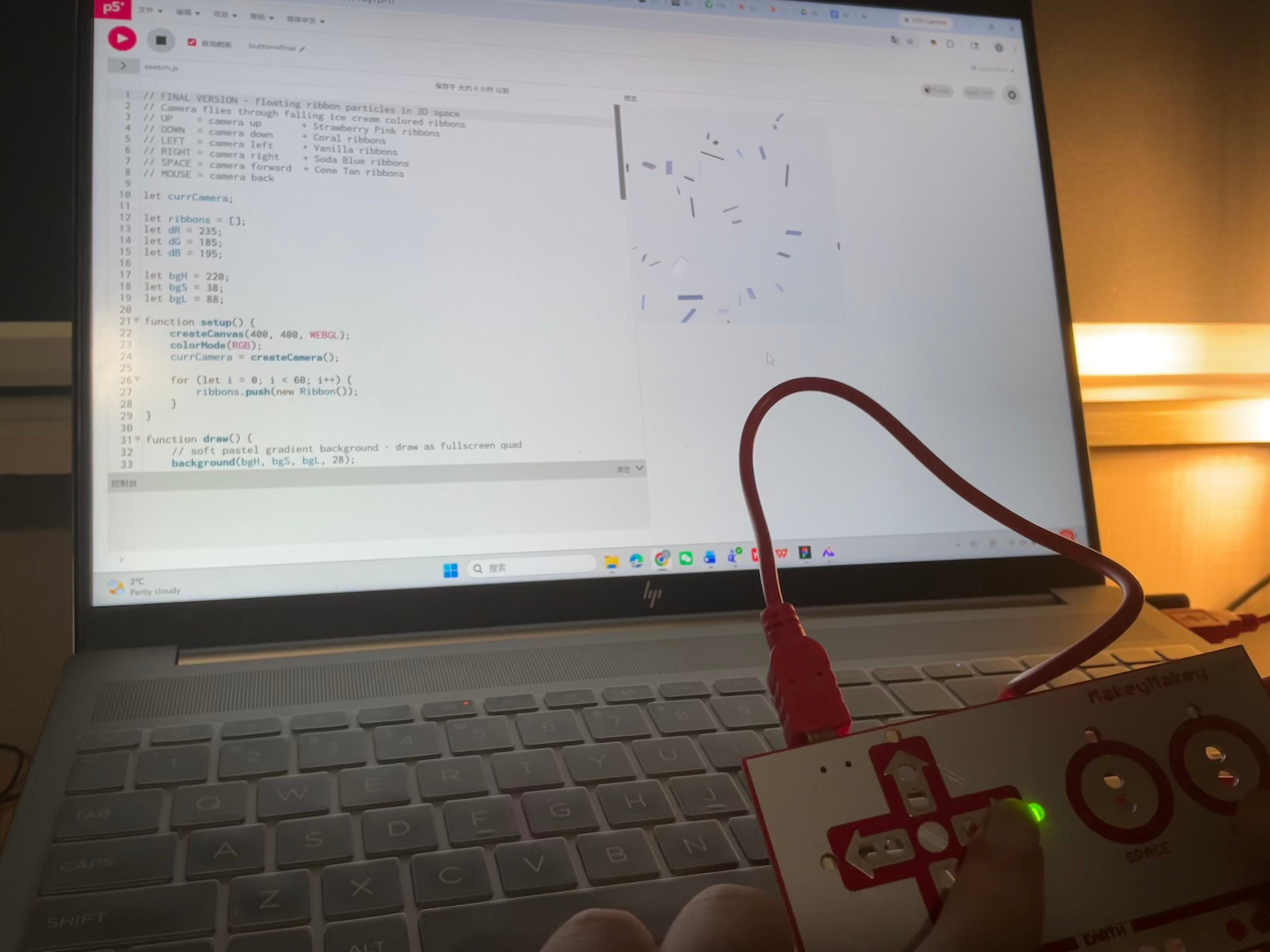
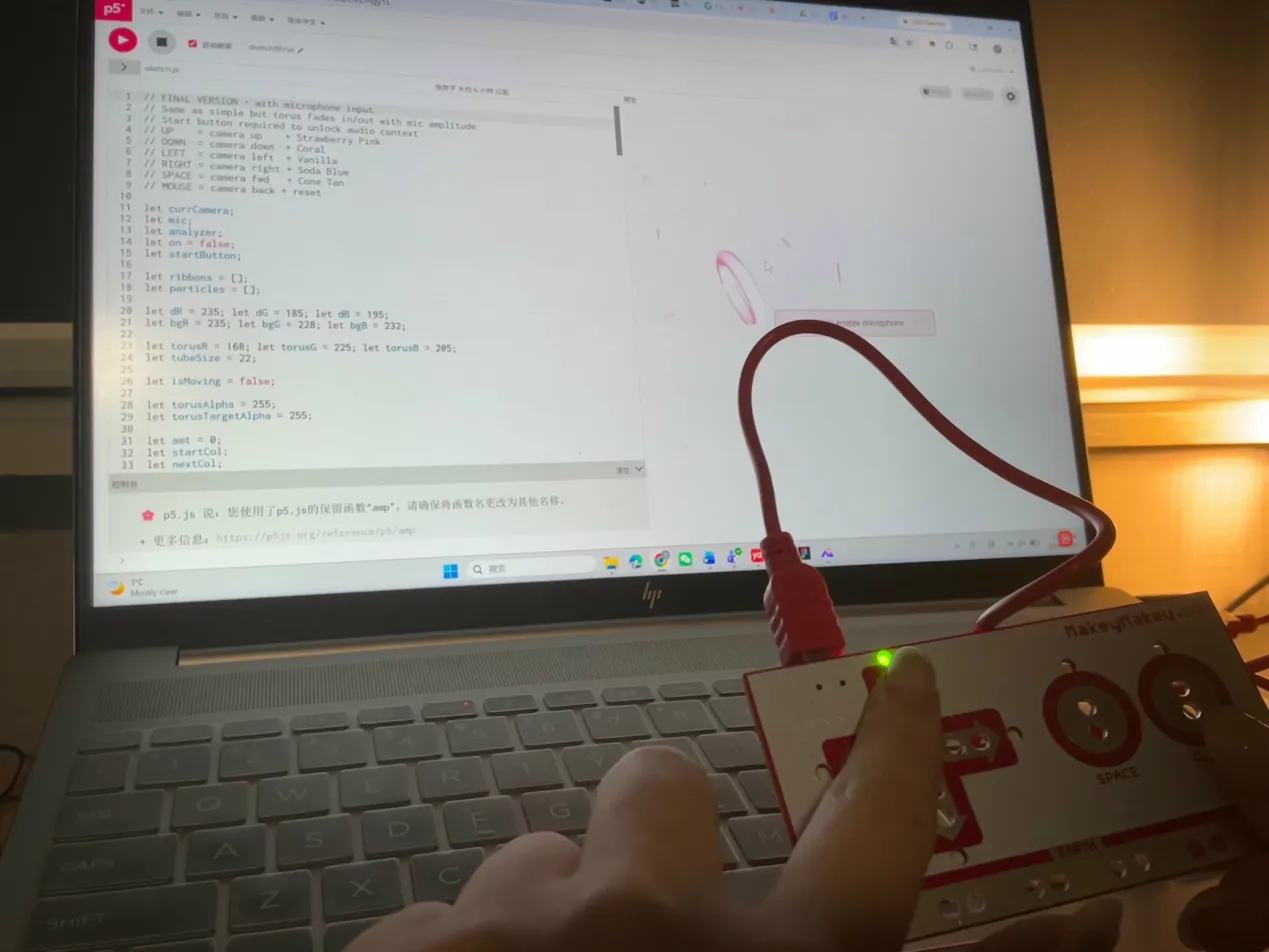
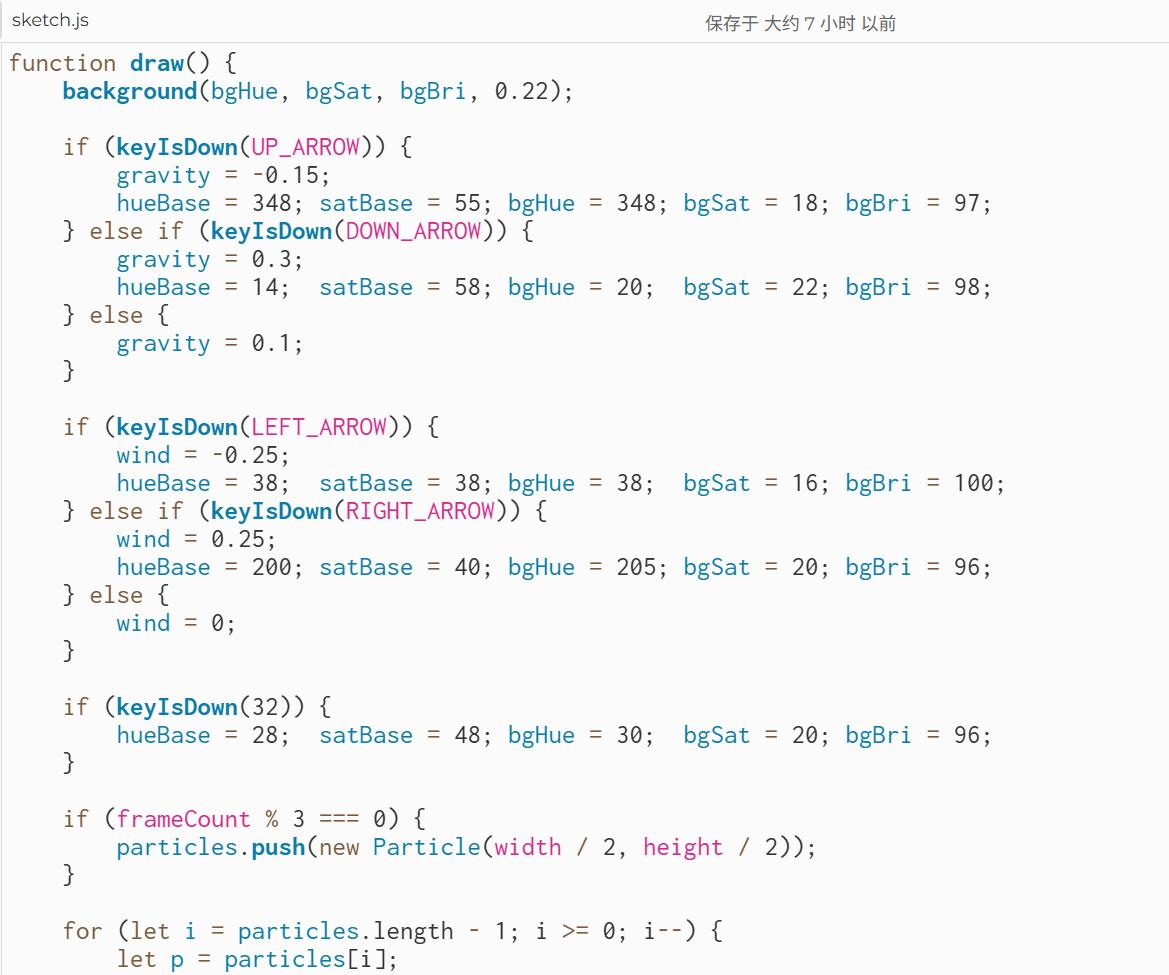
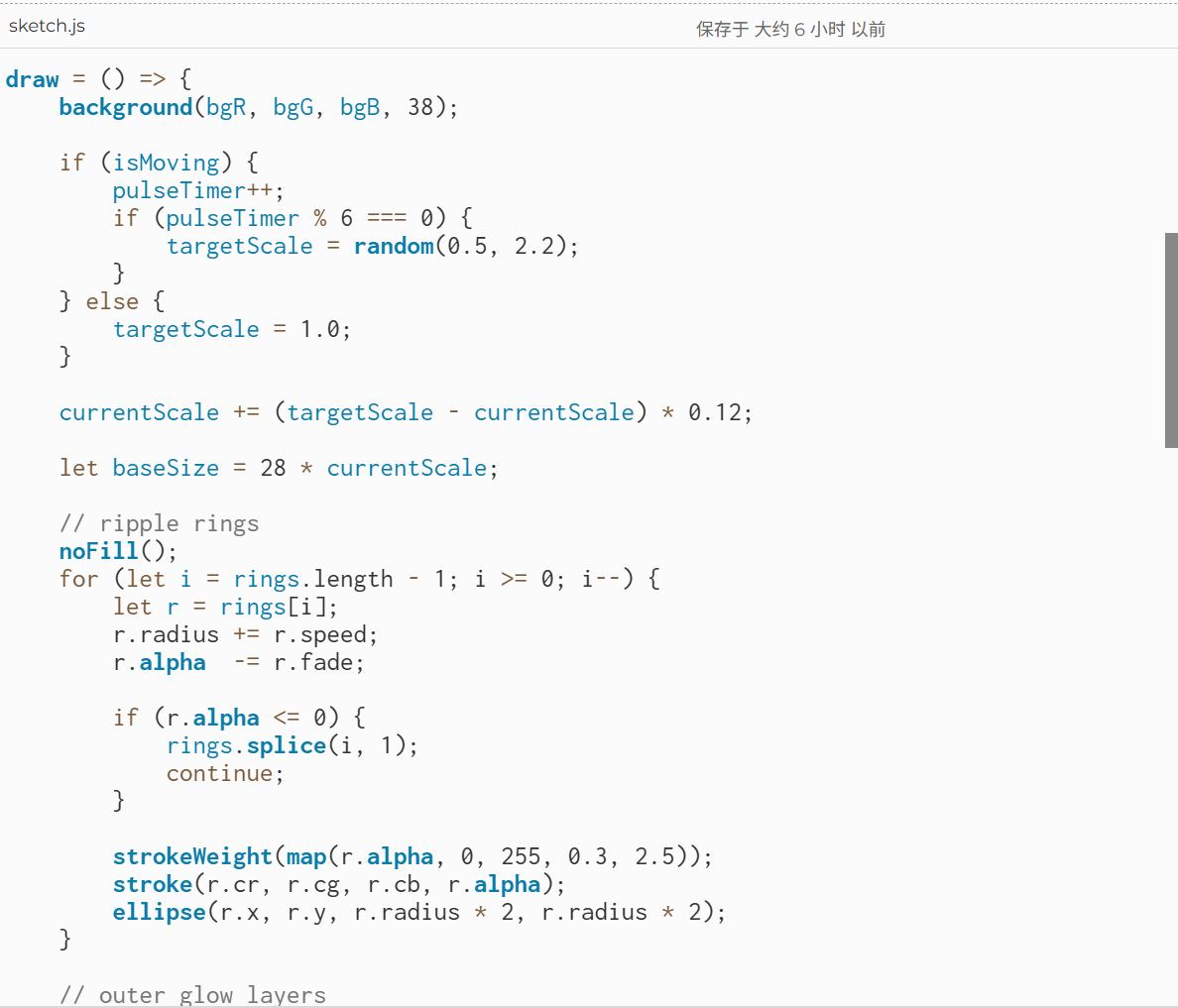
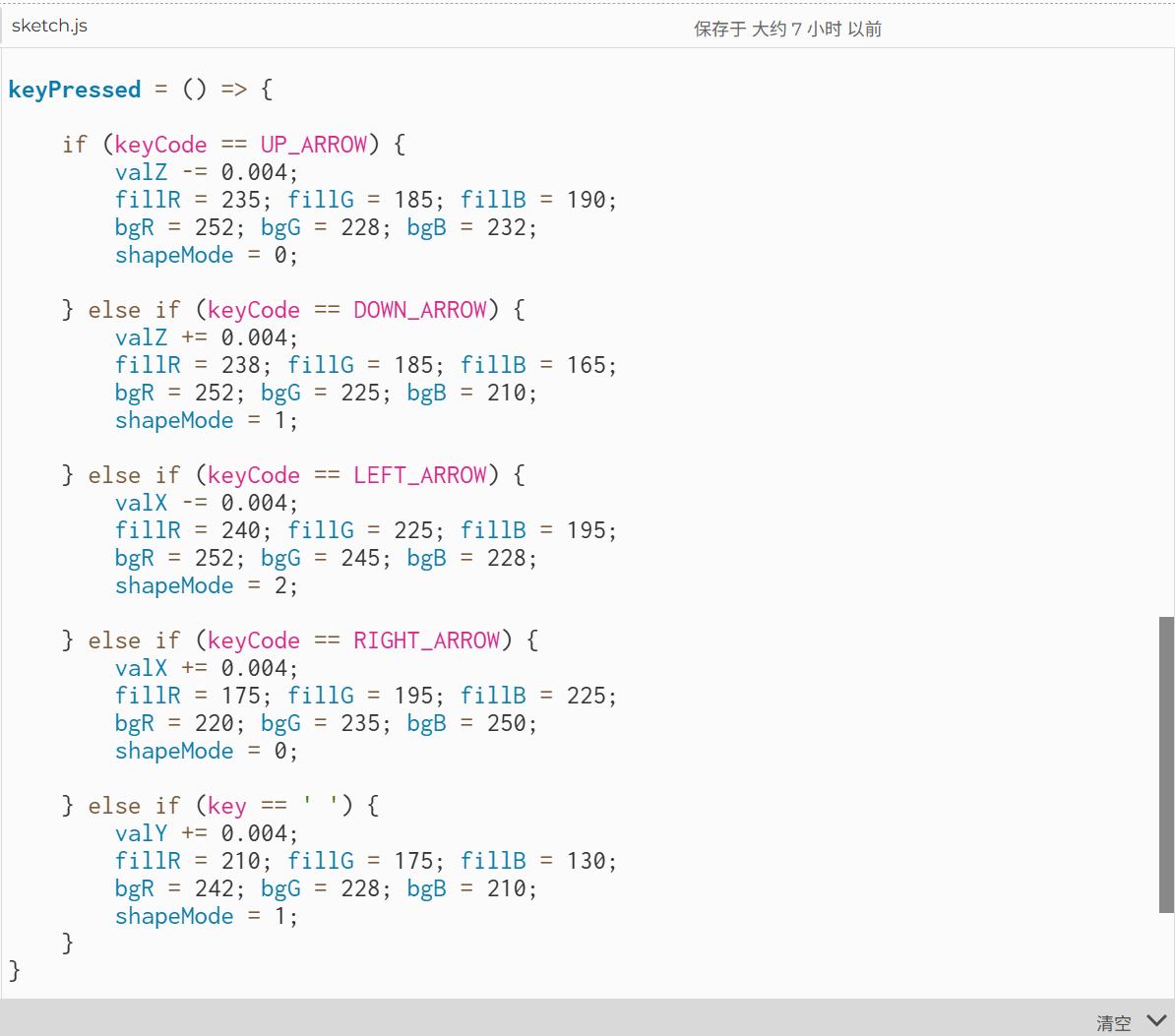
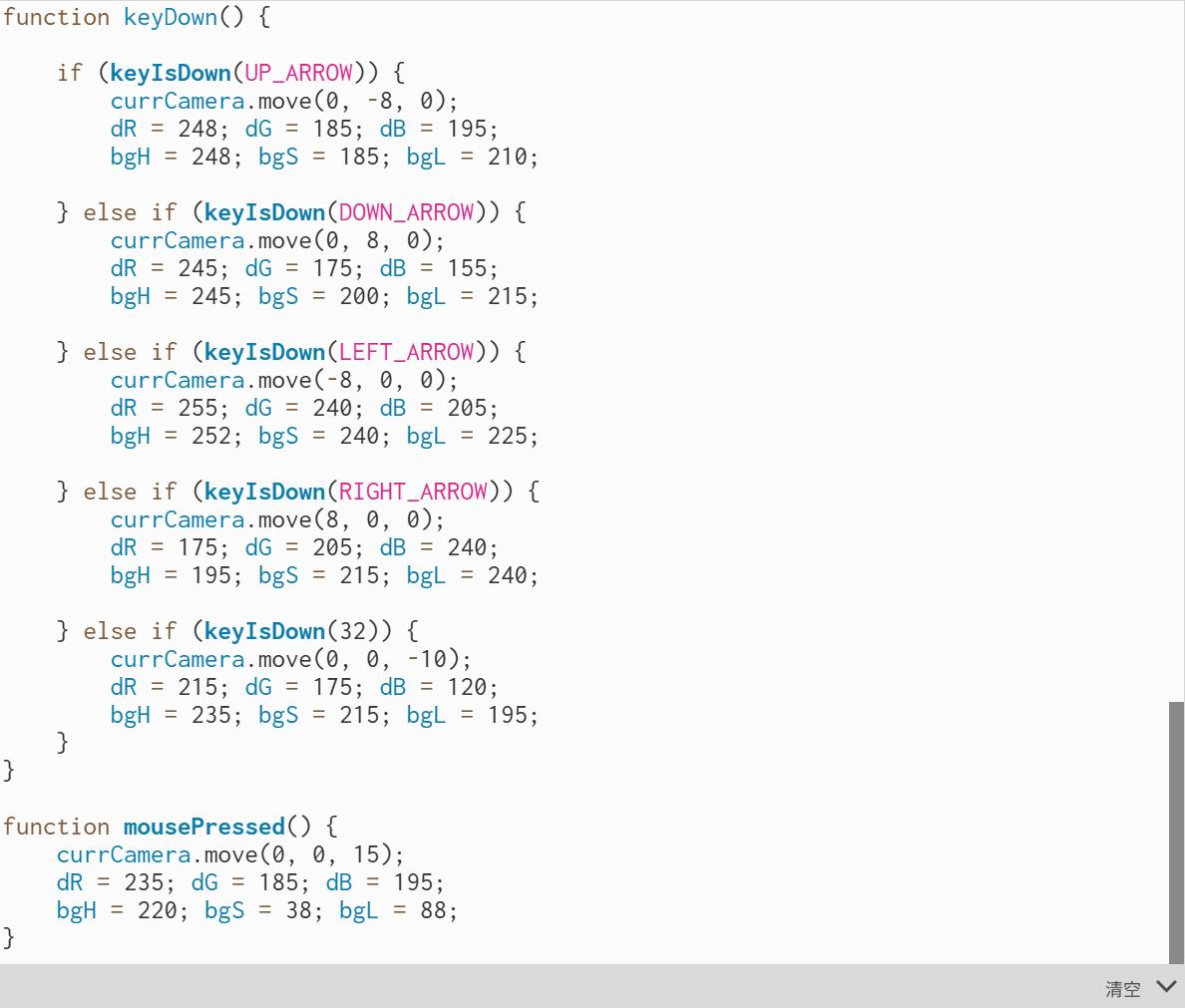
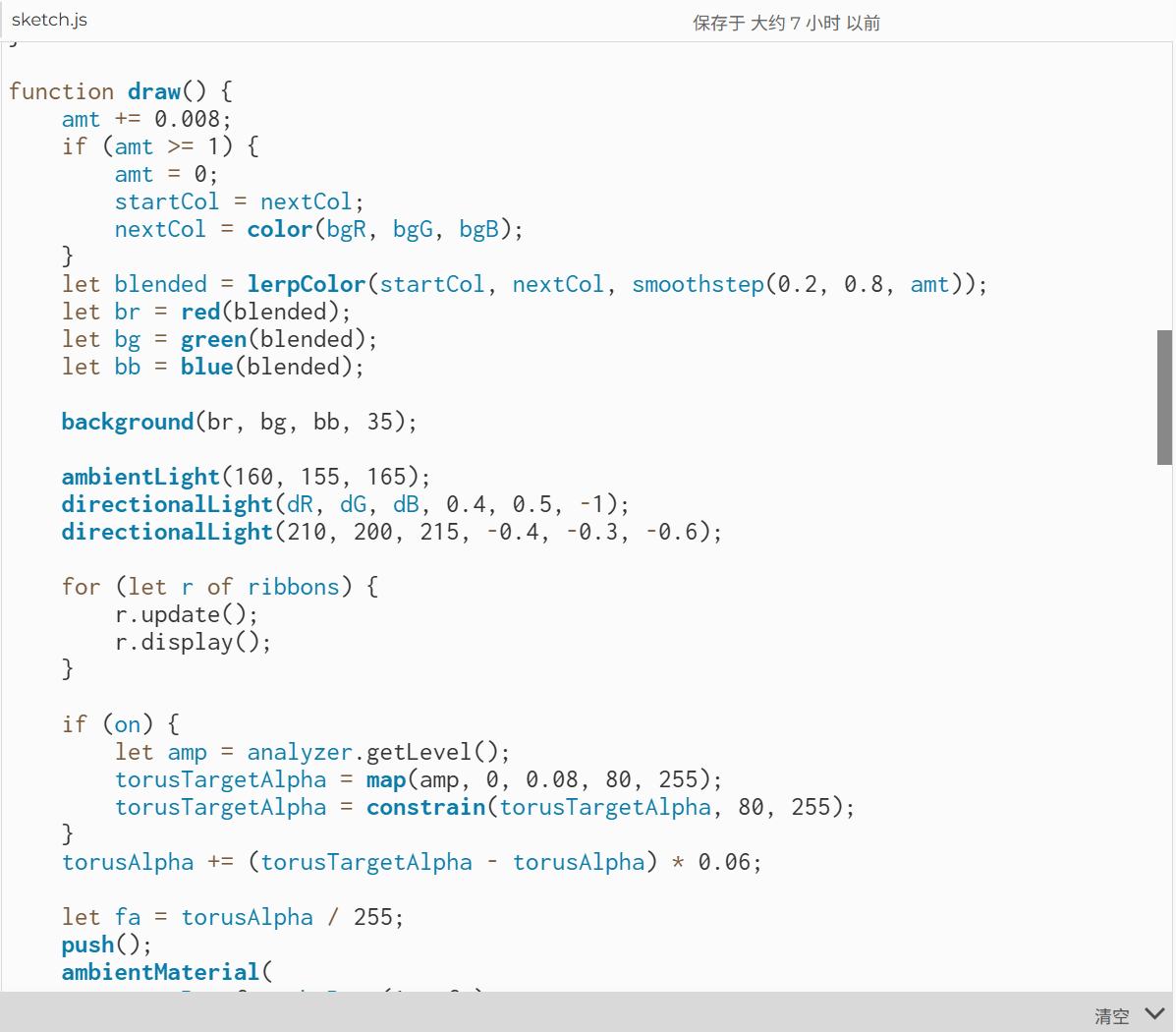
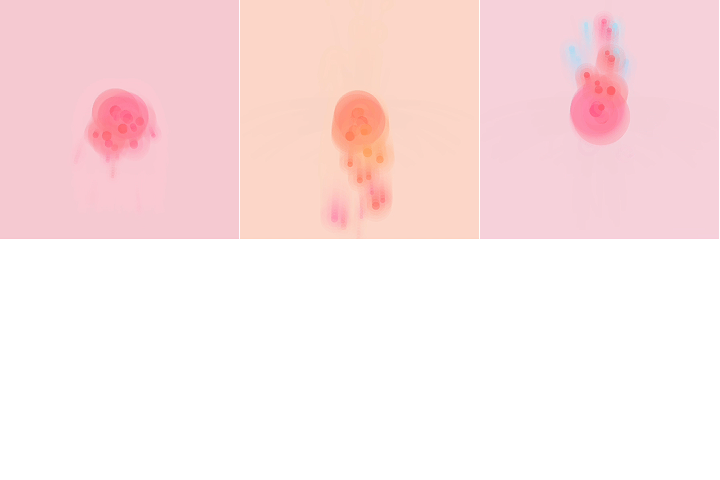
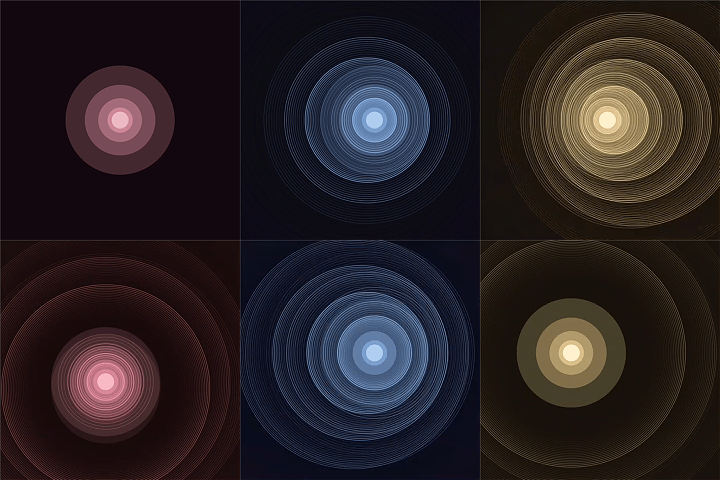
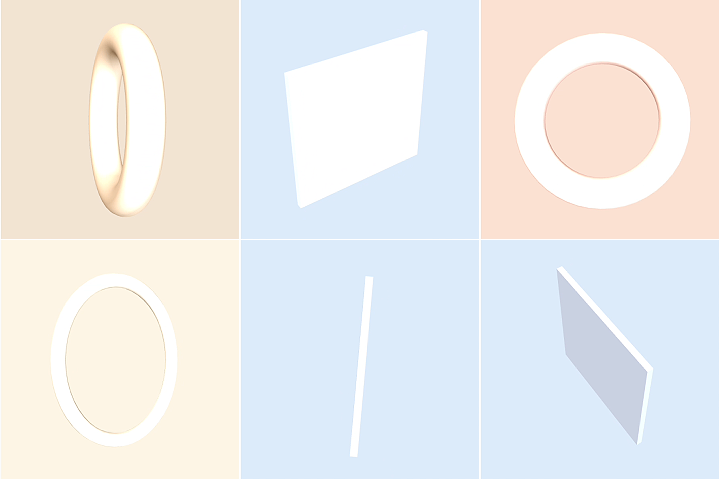
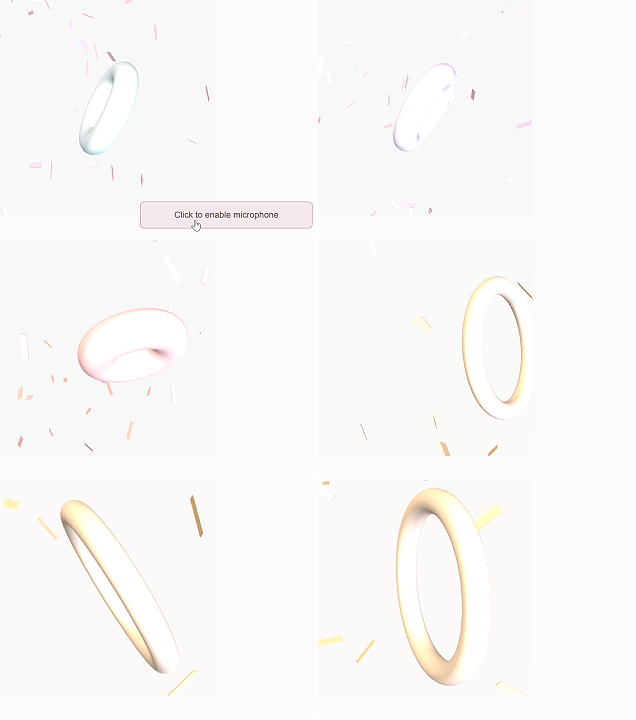
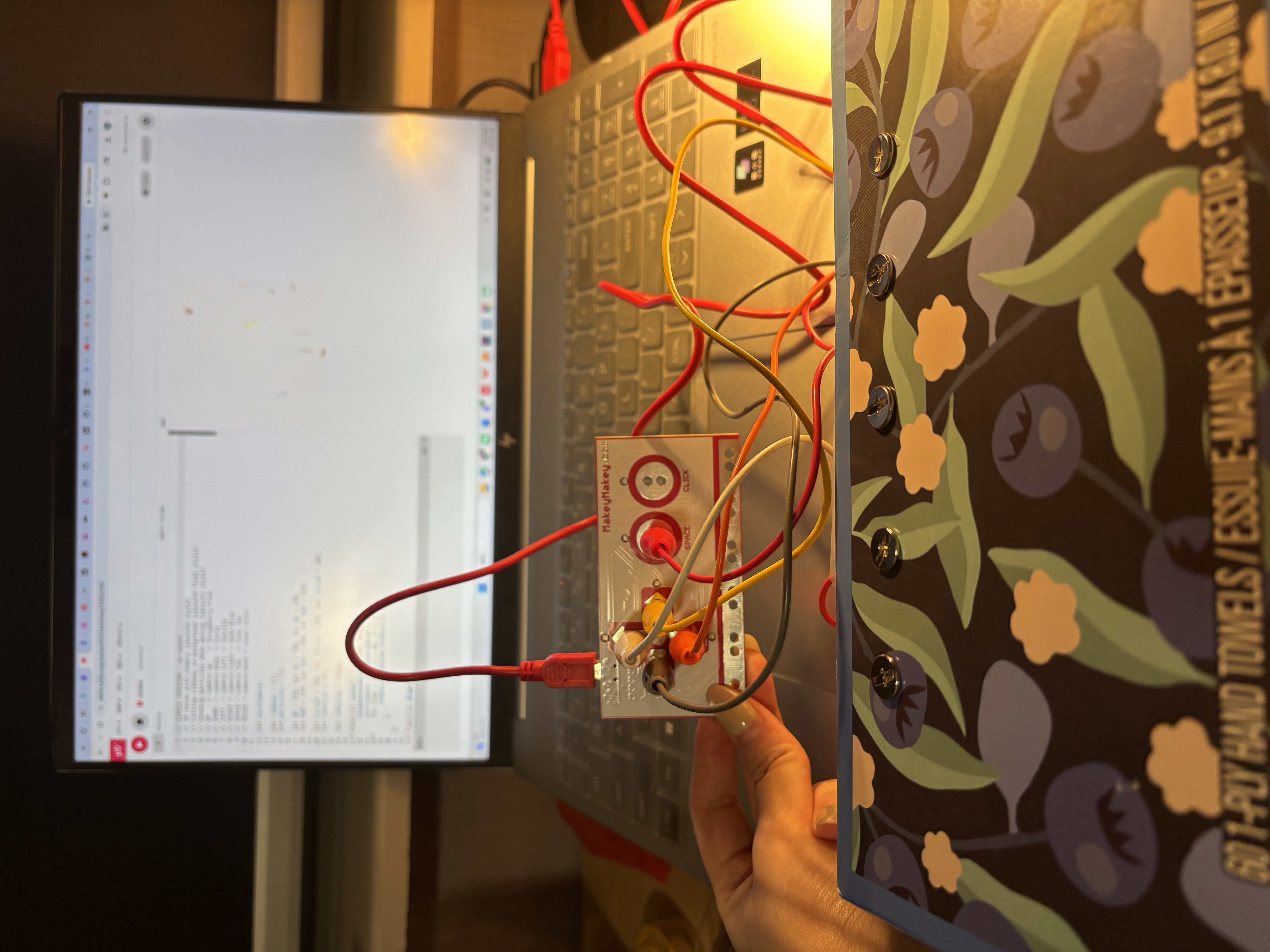
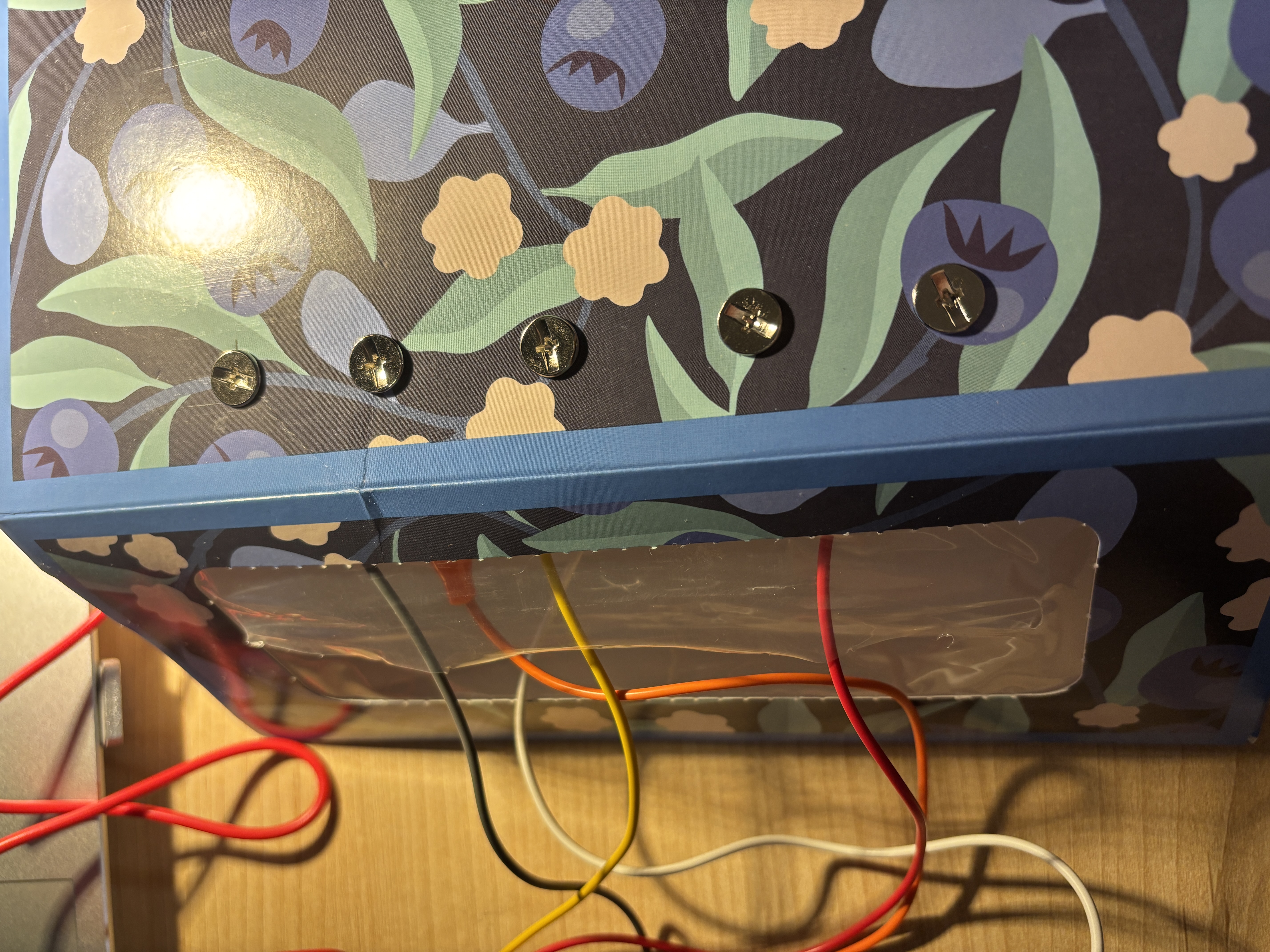
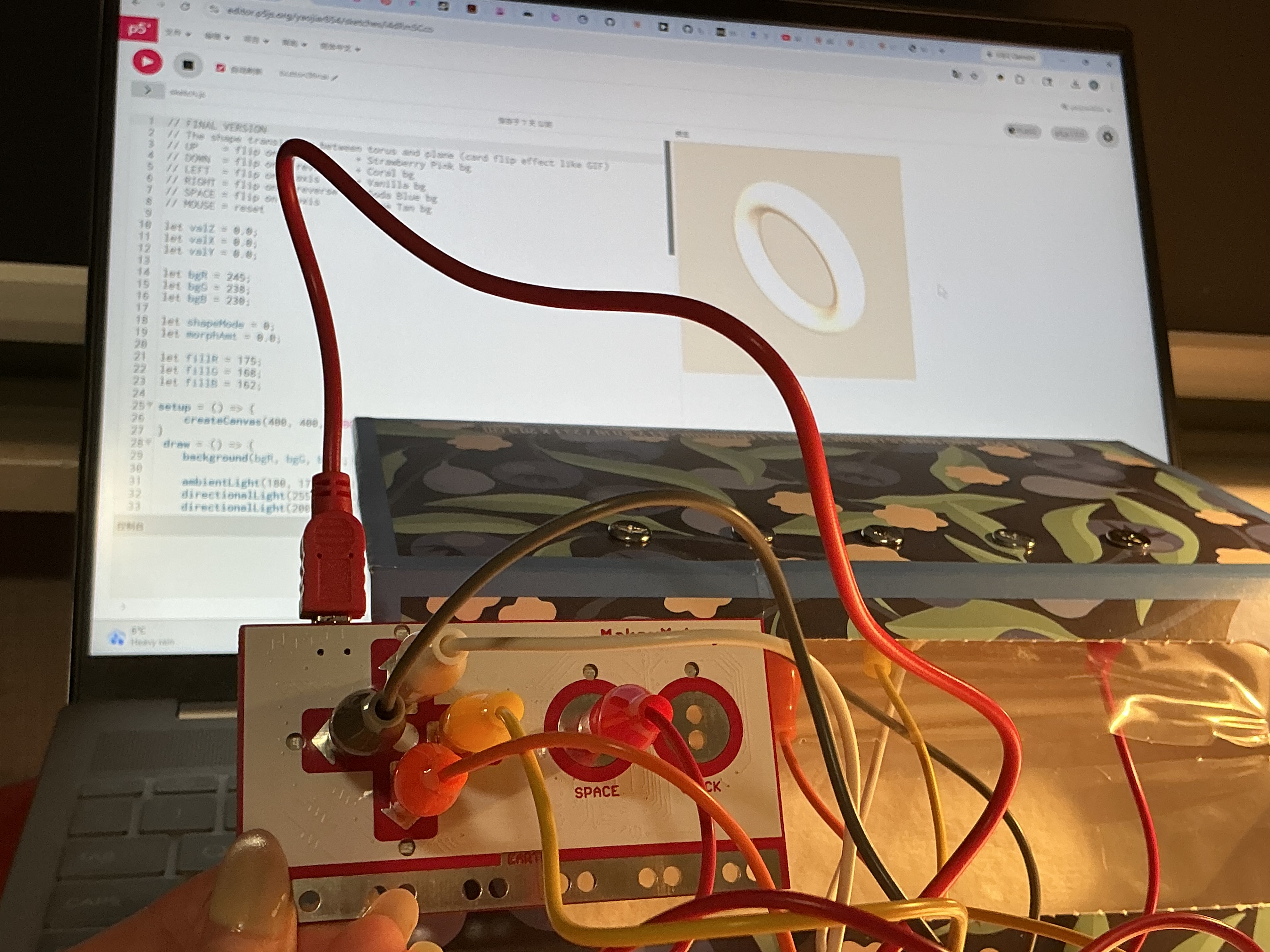
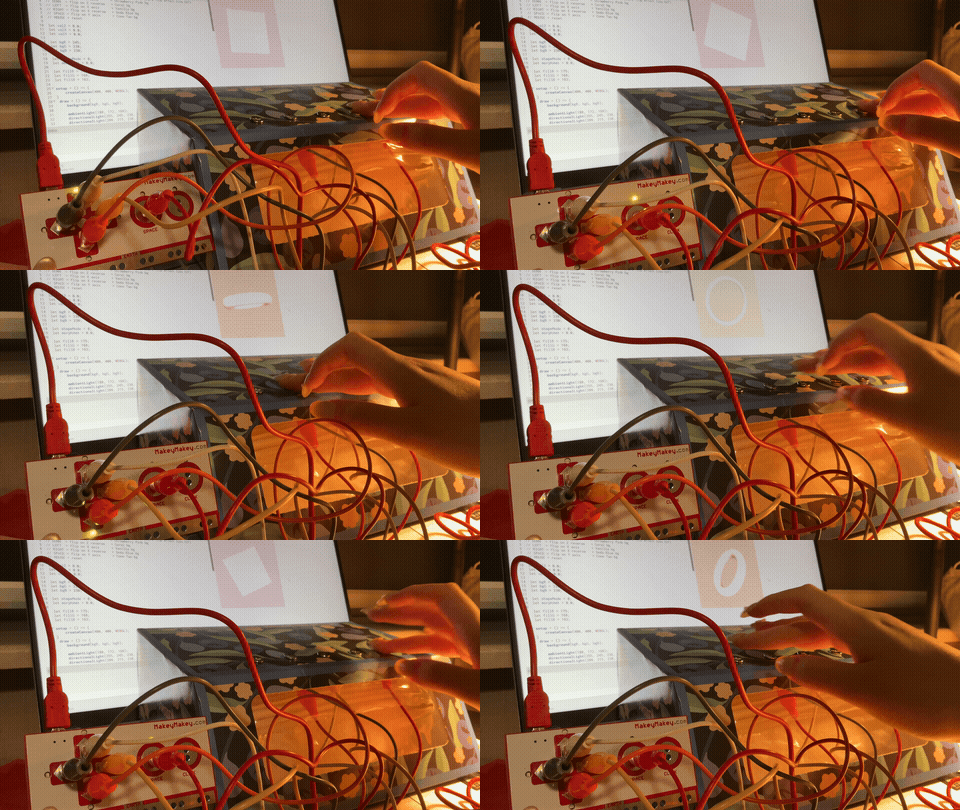
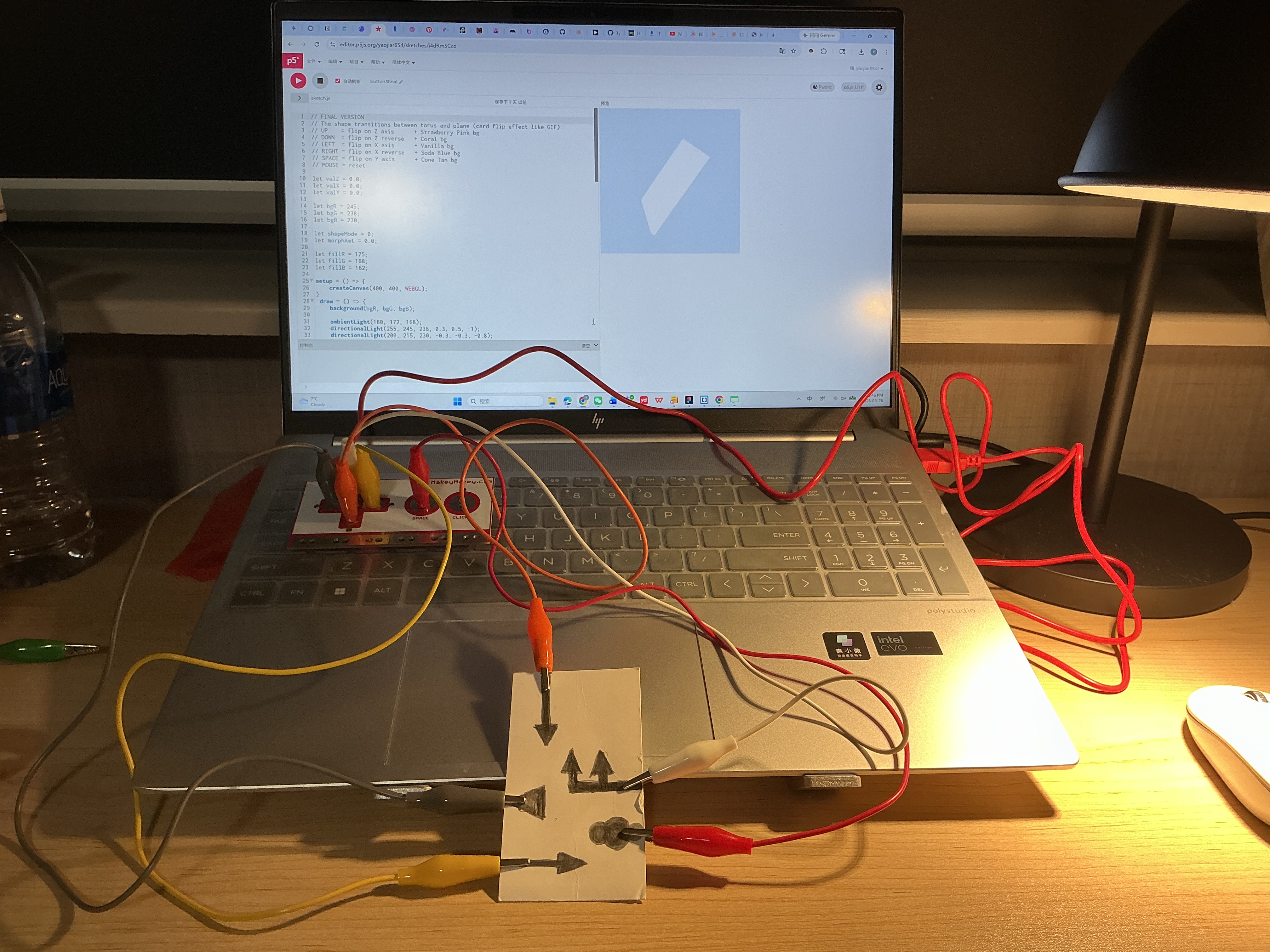
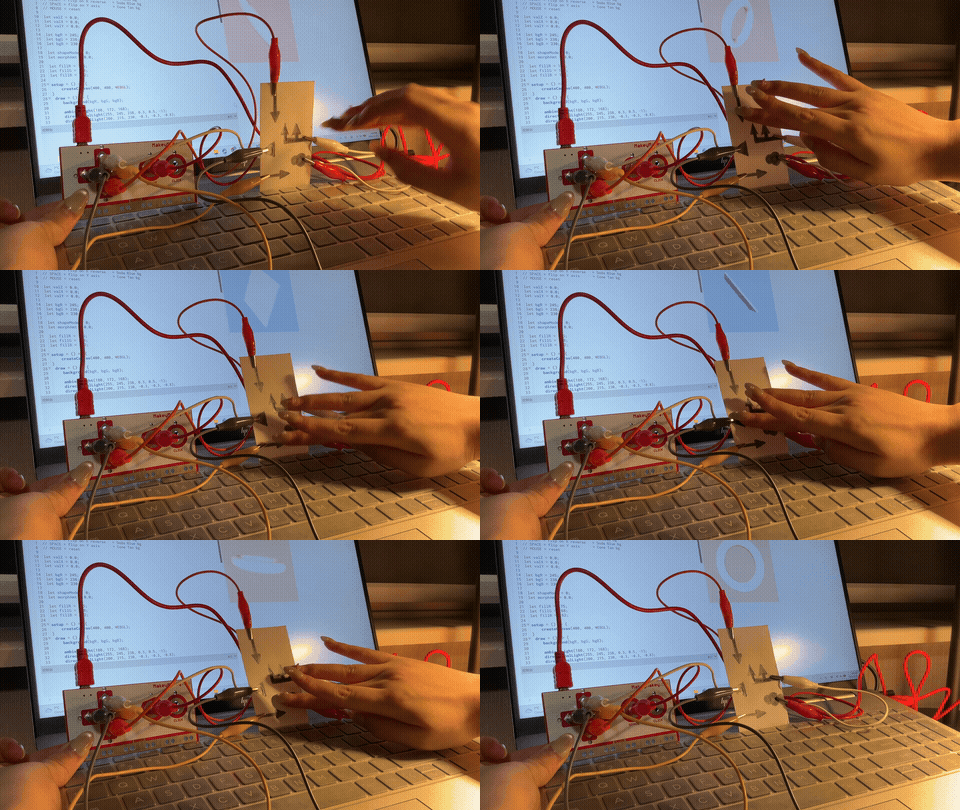
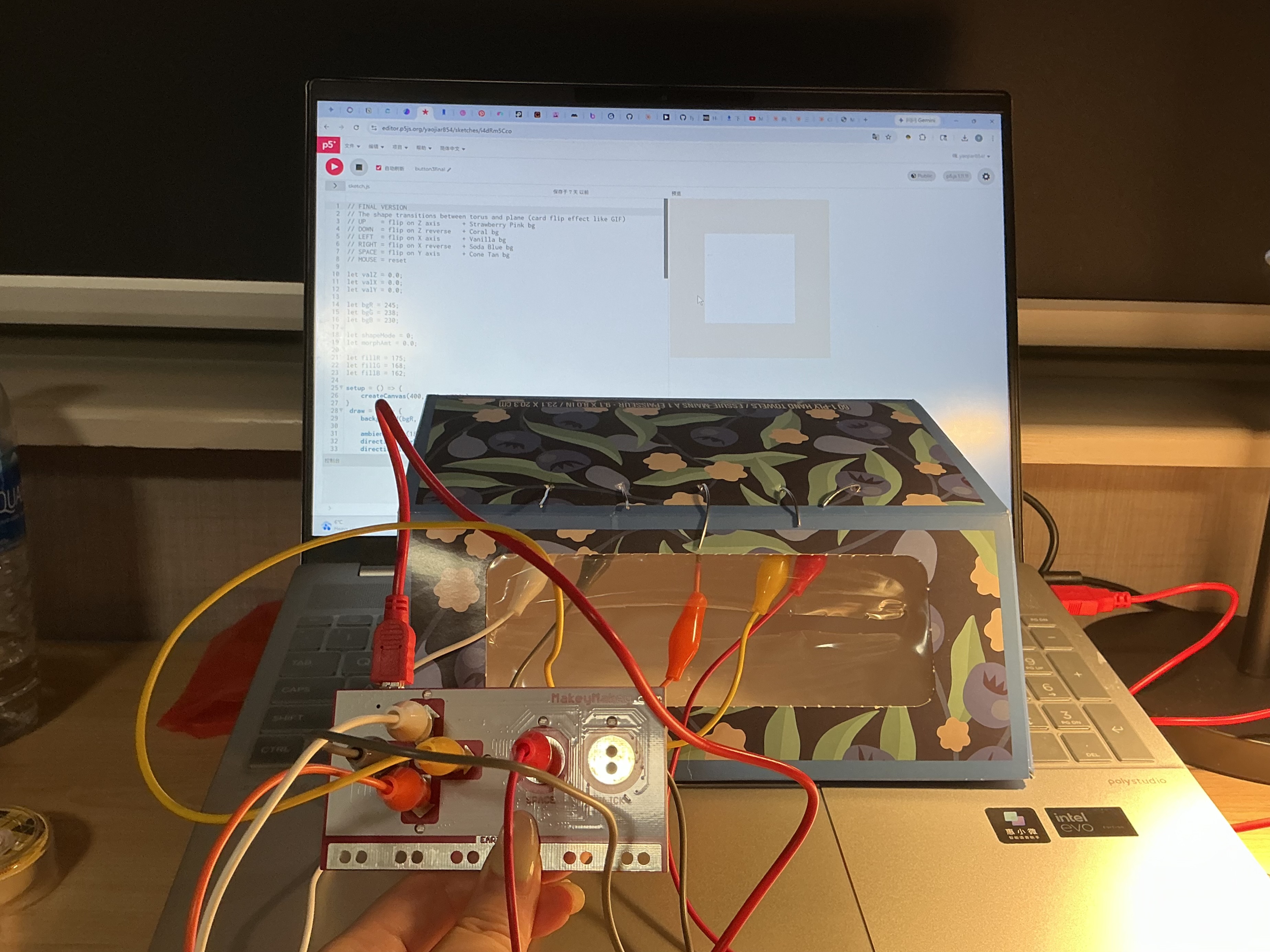
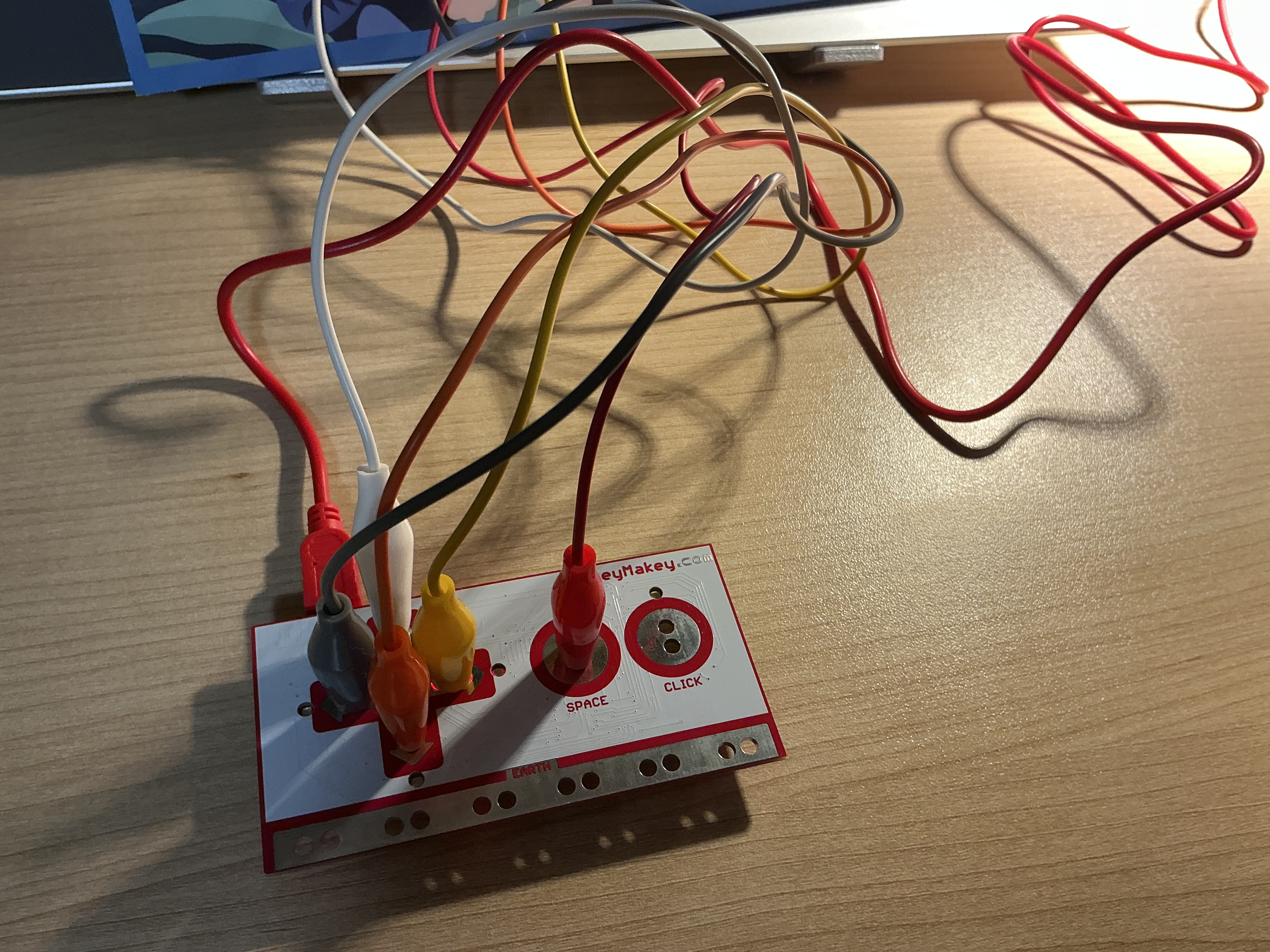
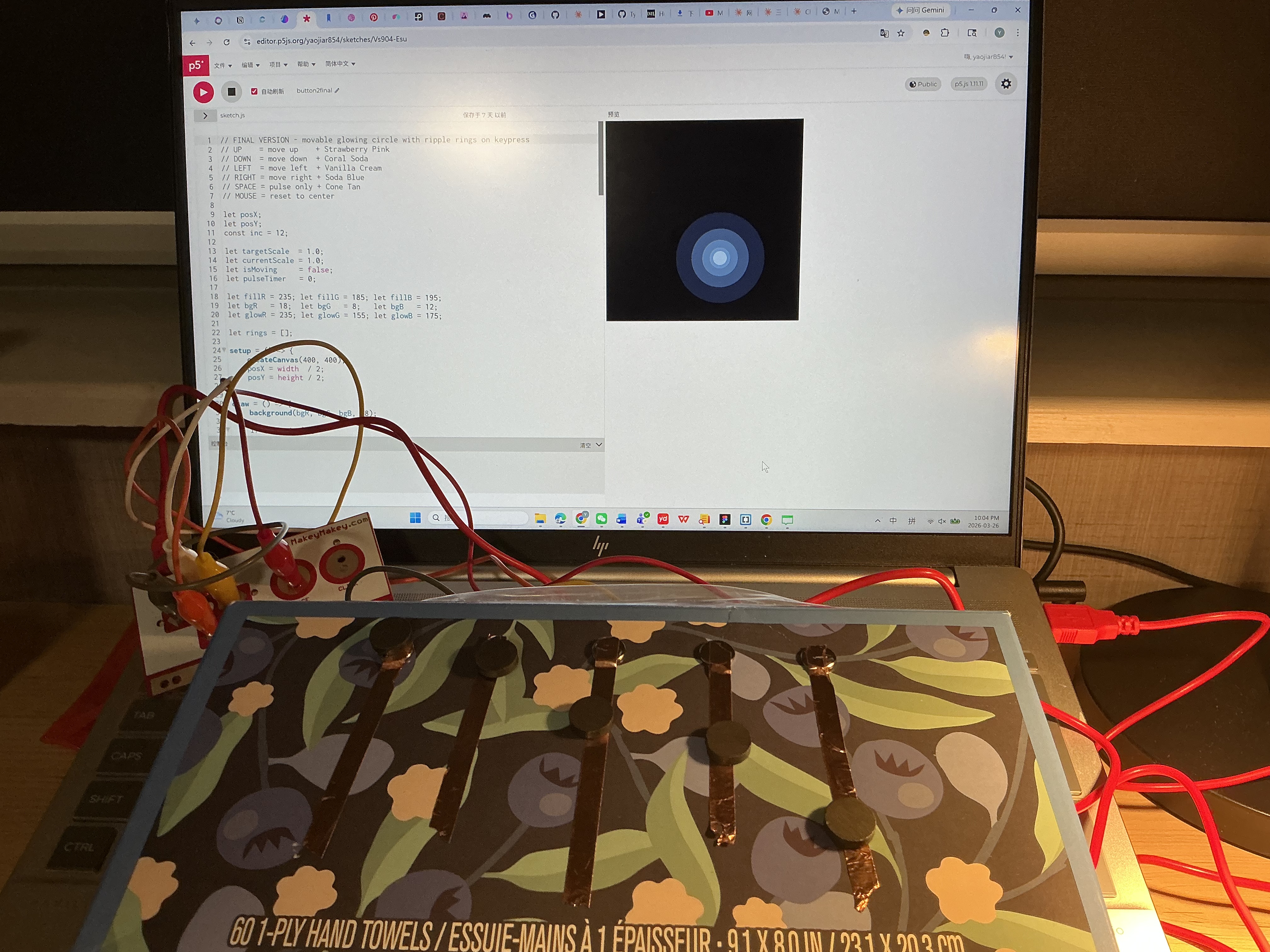
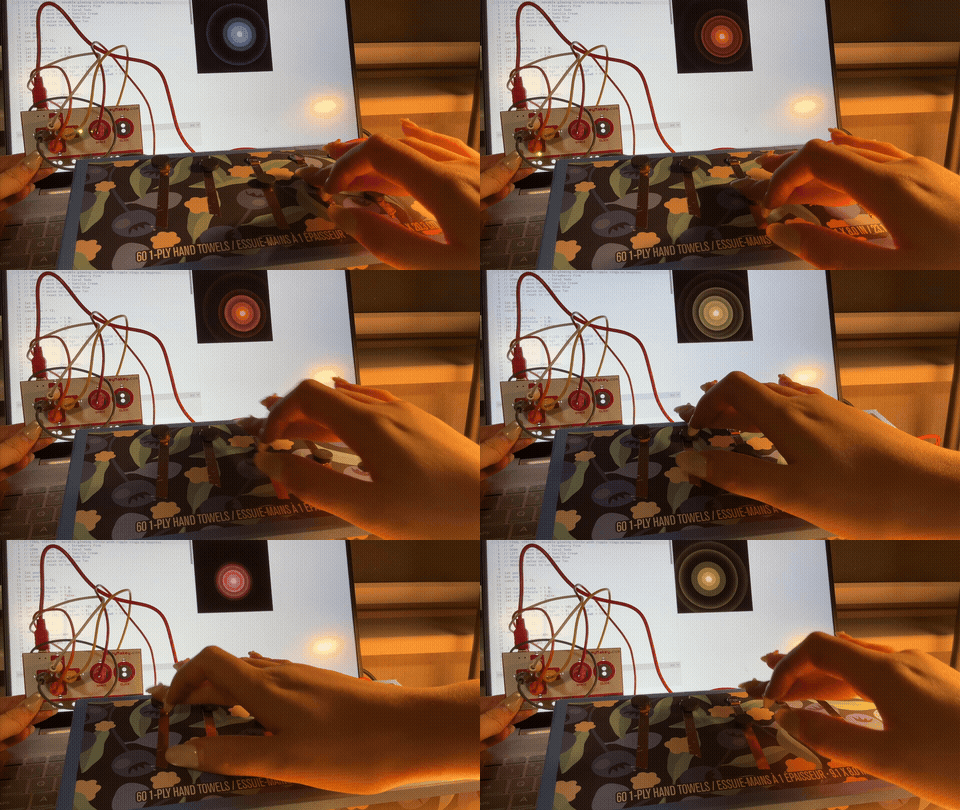
This activity explored what five buttons could generate across ten P5.js sketches, using a consistent ice cream and soda colour palette as a visual thread from start to finish. Each simple version isolated one core idea — colour change, 2D movement, 3D rotation, or camera navigation — while each final version layered multiple behaviours together, such as ripple rings on keypress, morphing 3D shapes, and ribbon confetti filling a navigable space. The greatest leap came in Sketch5 final, where microphone amplitude was added as a sixth invisible input, fading the torus in and out with sound. Throughout, the Makey Makey replaced the keyboard without any code changes, confirming the system was built for physical integration from the start.
Activity 1
✦


Activity 2
✦
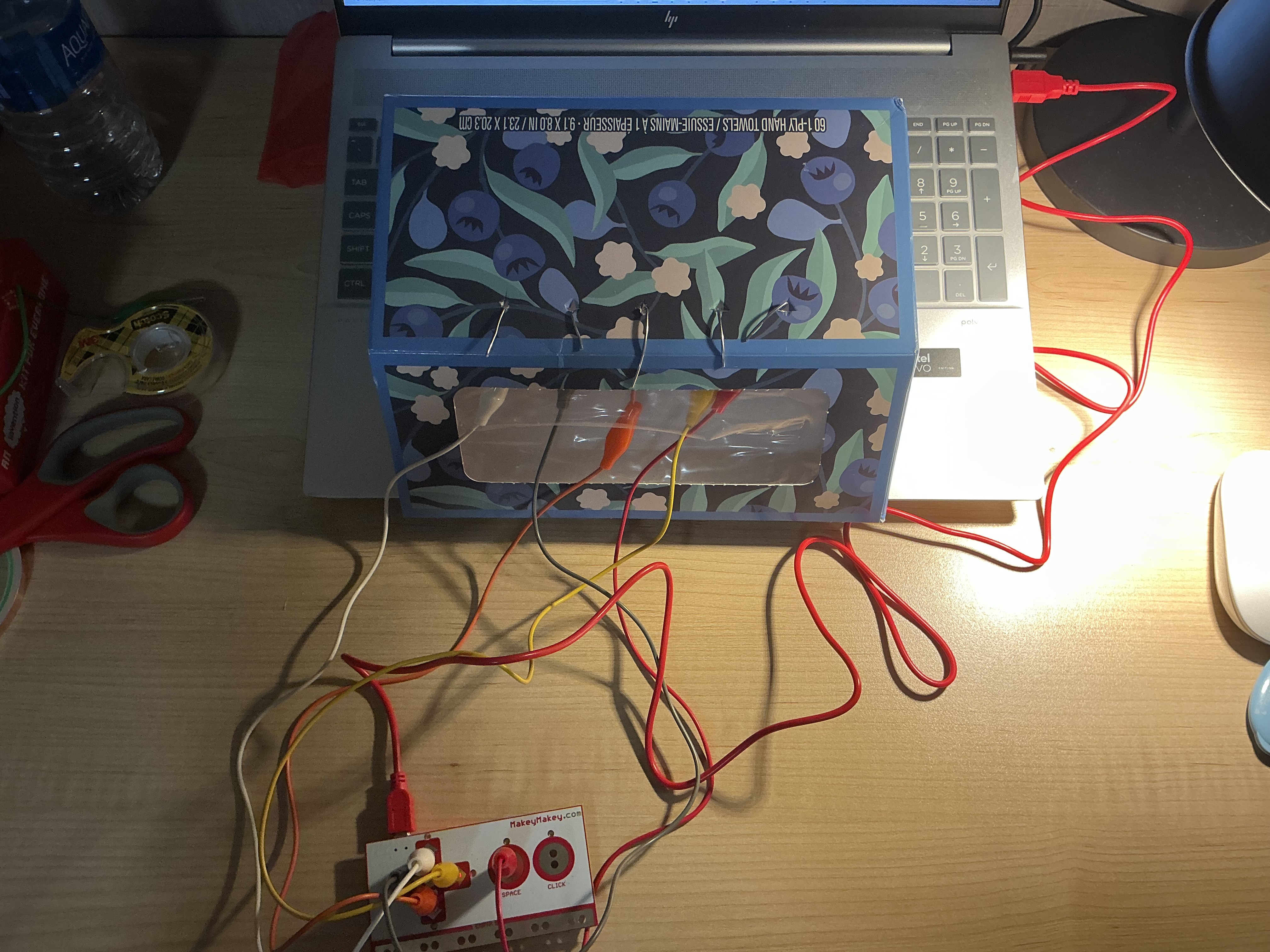
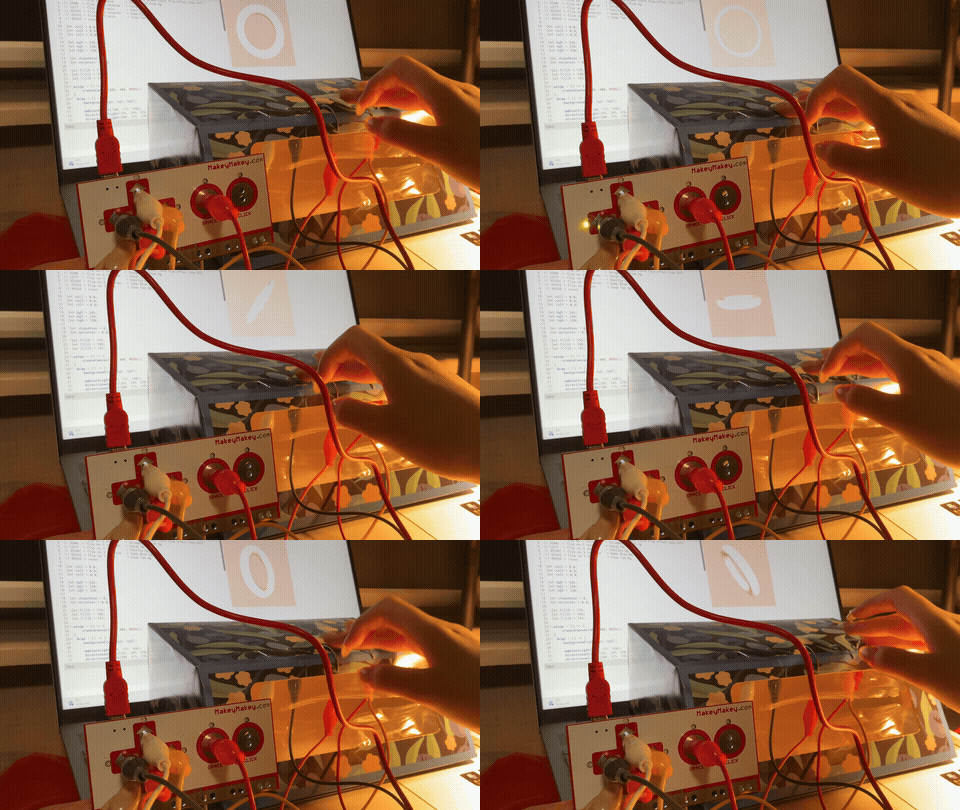
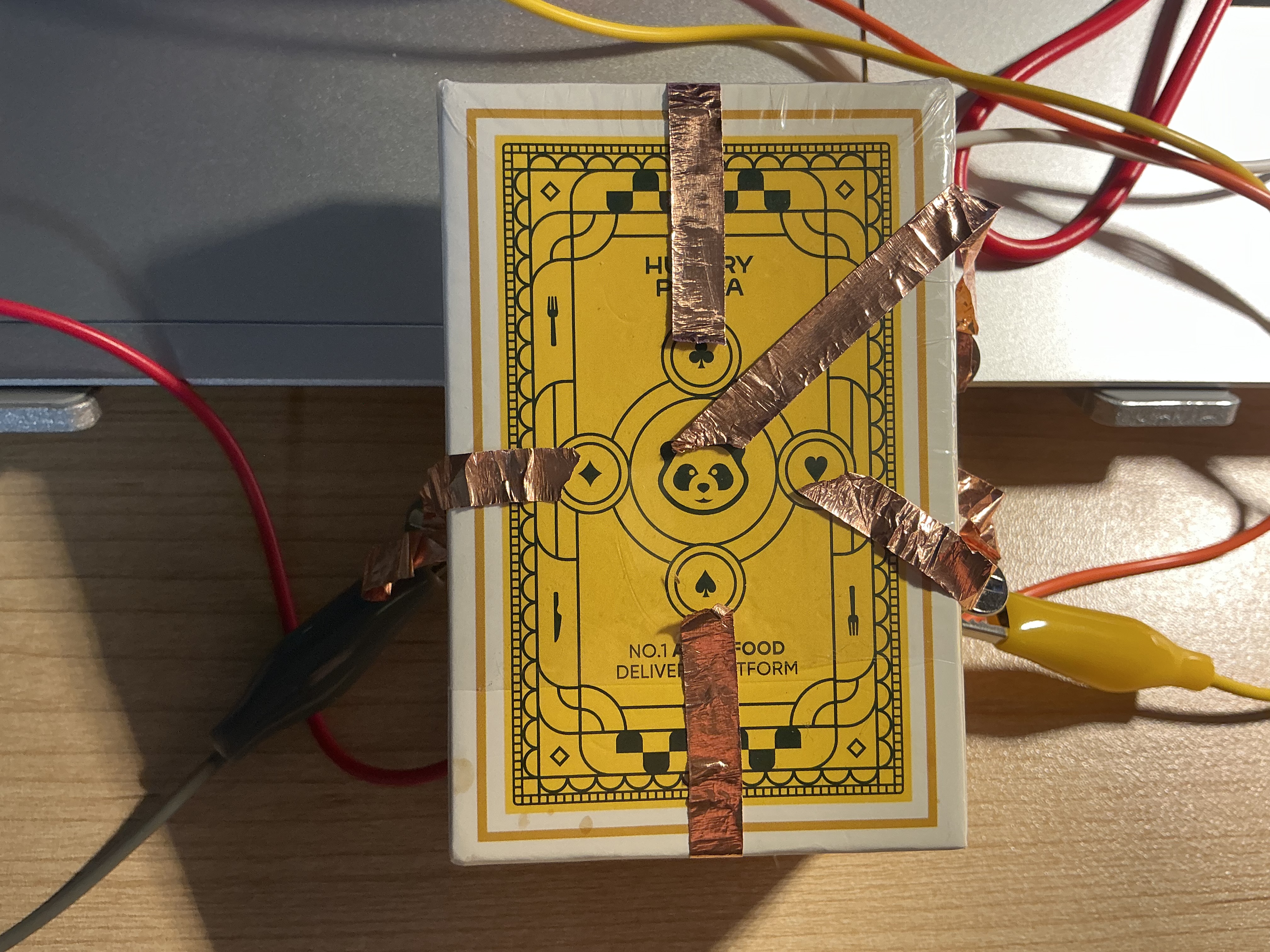
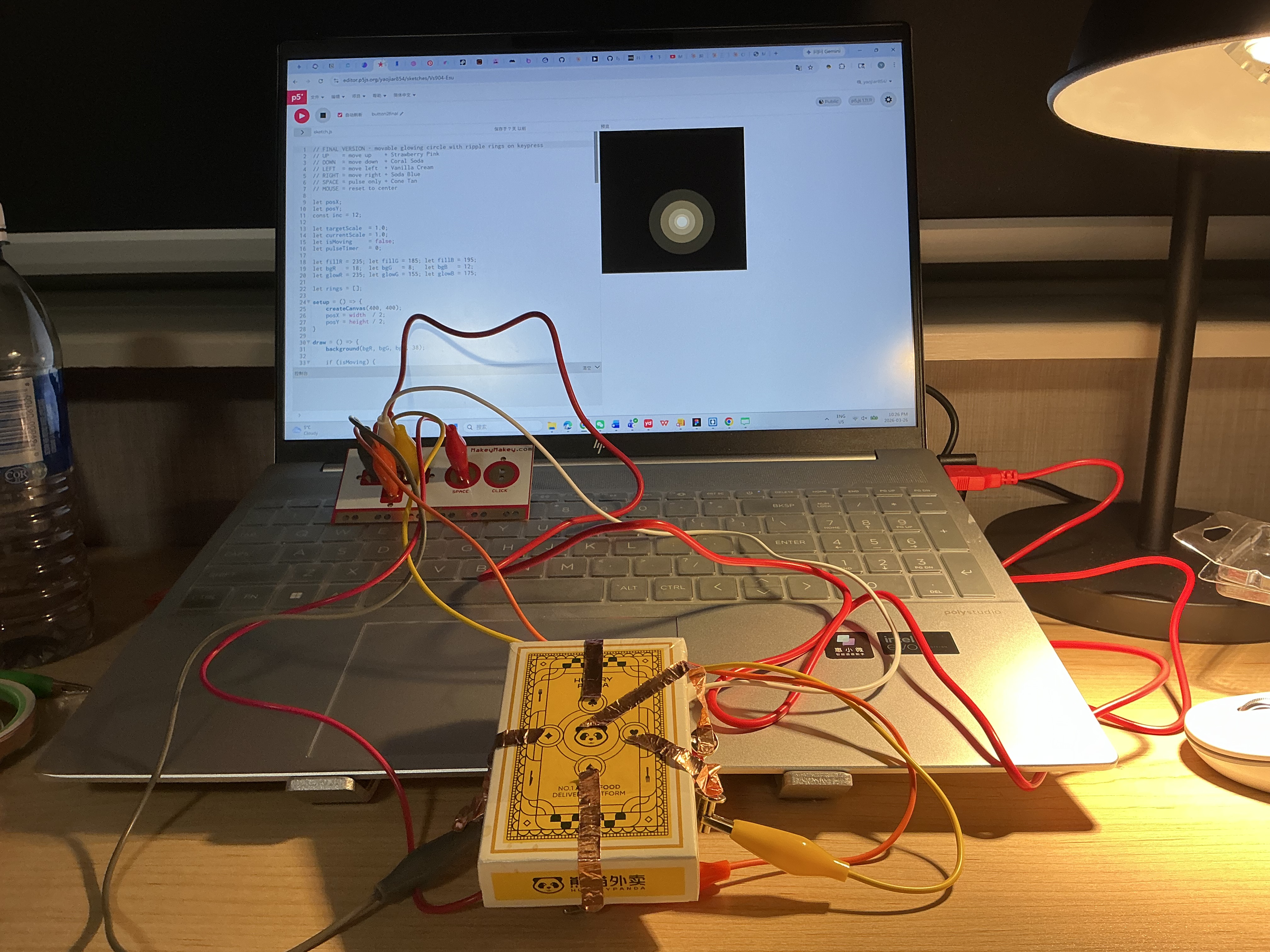
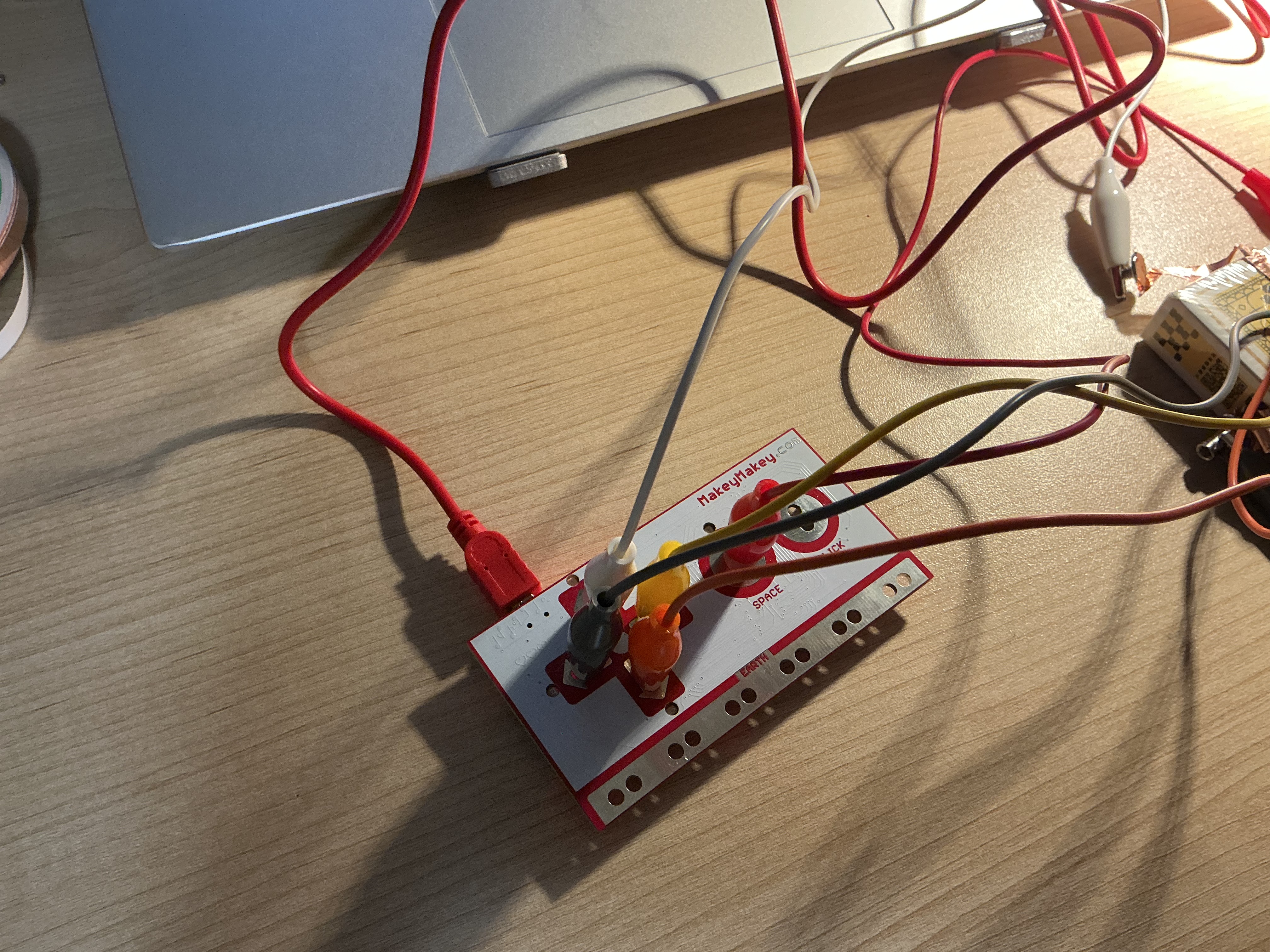
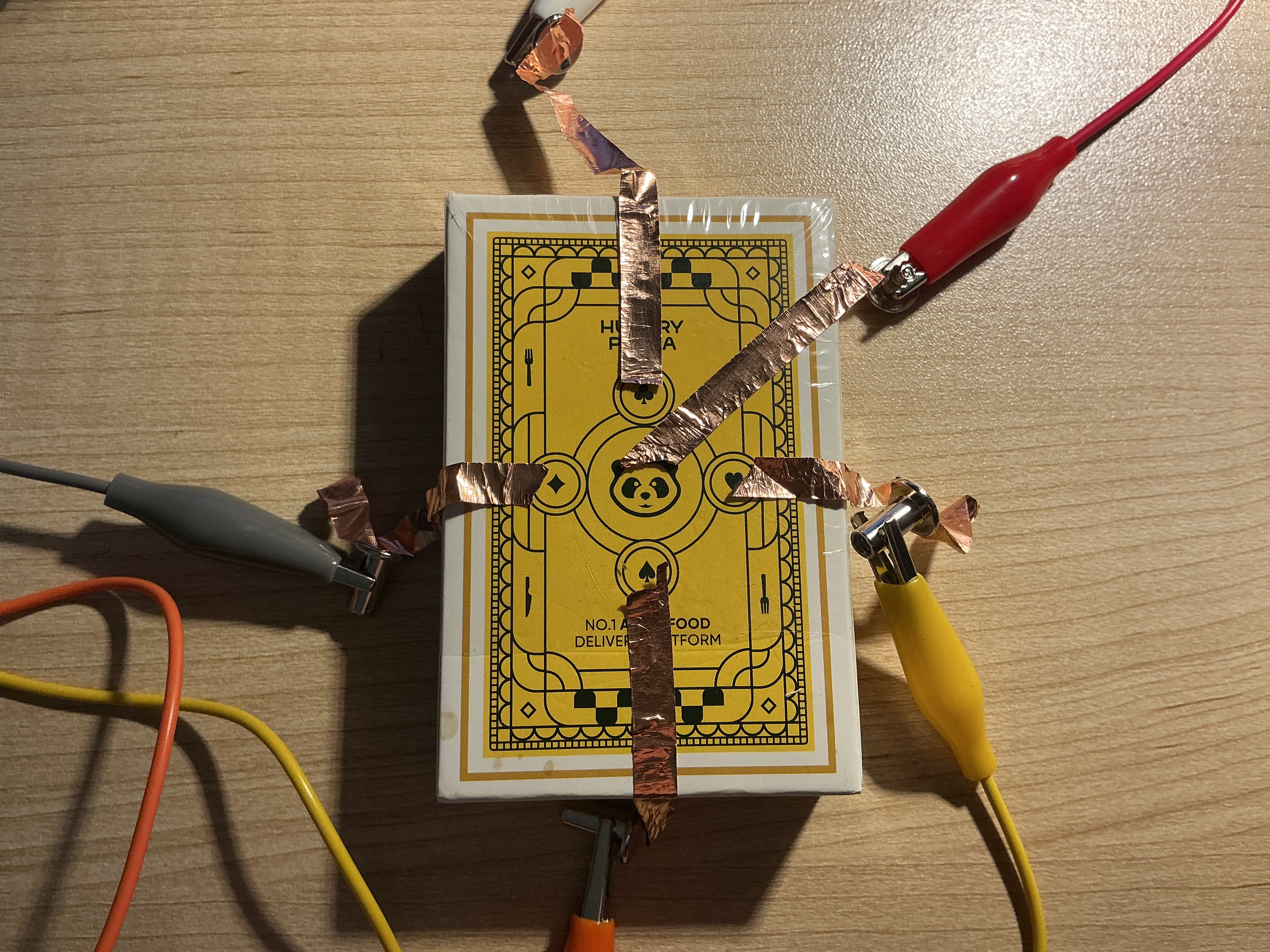
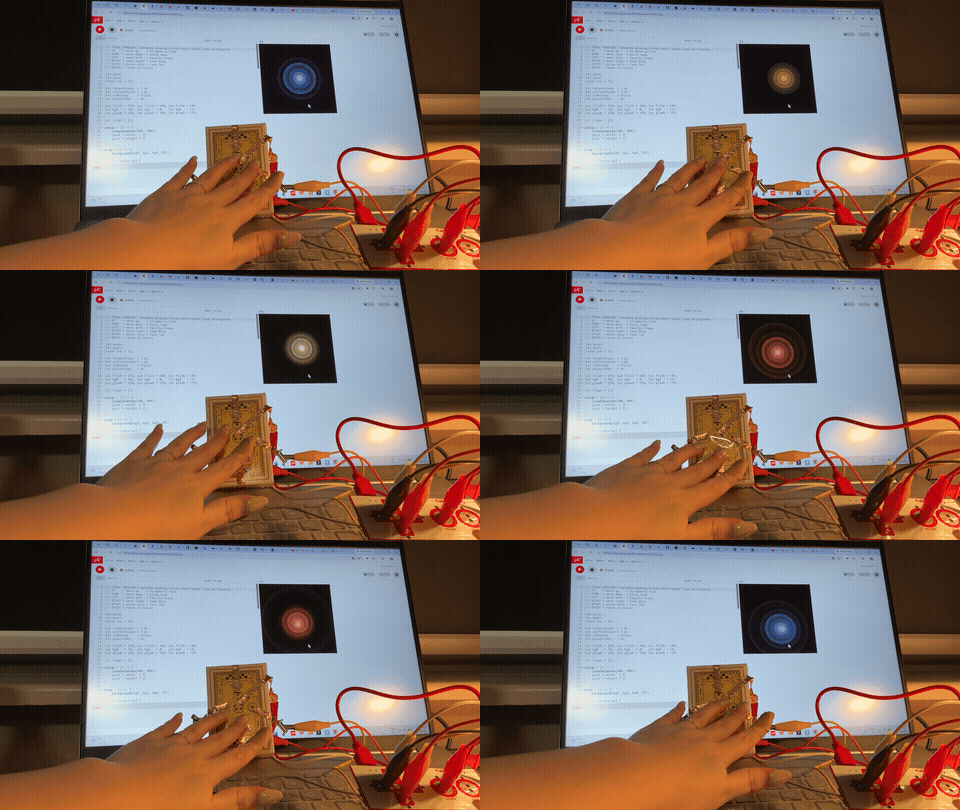
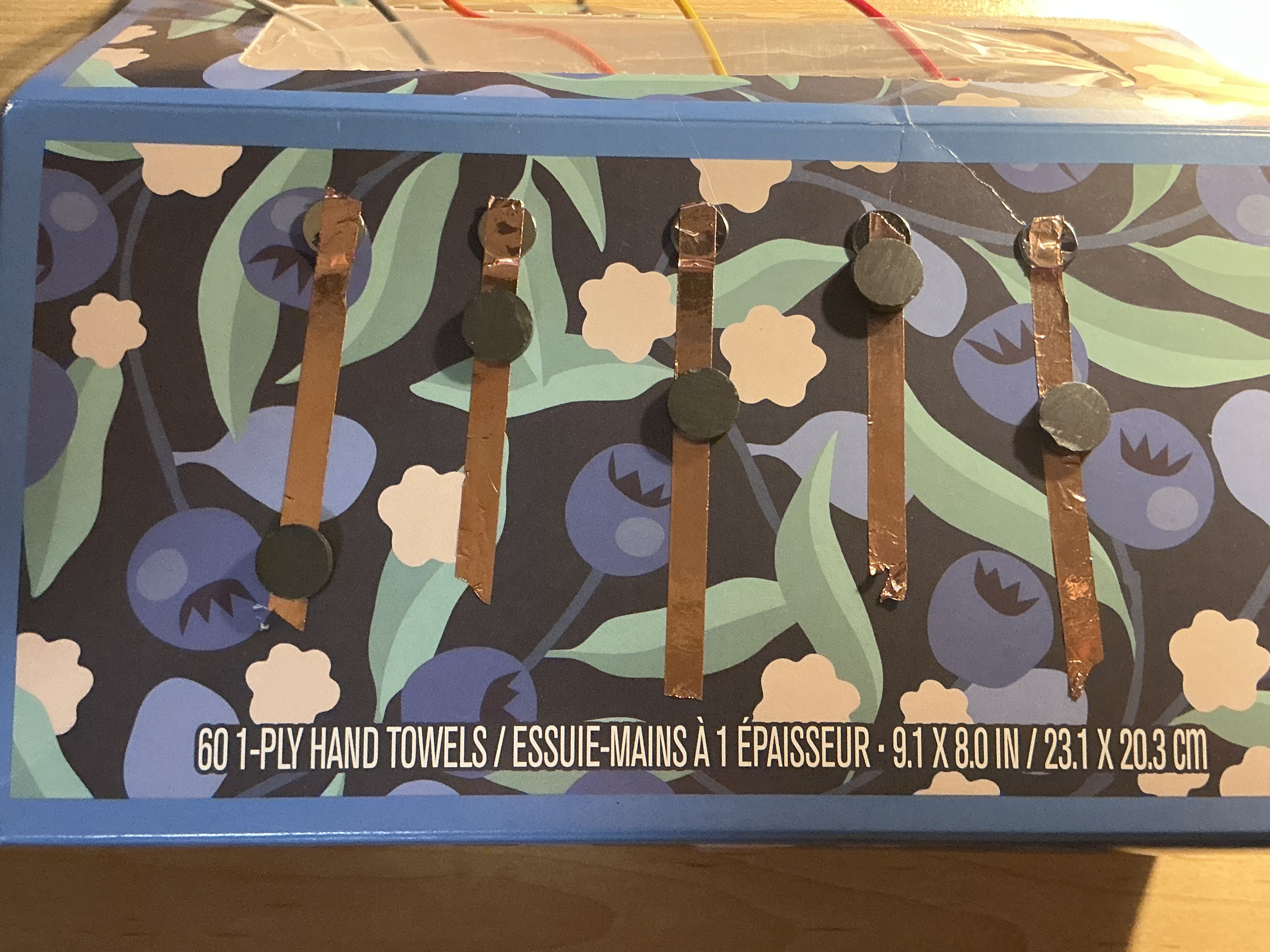
Project 3
✦Hypercortisolism
touch is diagnosis · Makey Makey + p5.js Installation
How did you engage with the project theme?
I engaged with the project theme by designing a physical-digital installation called Hypercortisolism, built around the concept that touch is diagnosis. The work was directly inspired by a personal medical event: a clinical diagnosis of dental nerve necrosis caused by stress-induced teeth grinding. That moment made clear that emotional states leave undeniable physical evidence on the body. The installation transforms a Makey Makey controller into a surrogate body — a hand-drawn hexagonal board of wooden tiles, each depicting a biological system affected by chronic cortisol. Participants must hold the HIGH cortisol anchor with one hand while exploring the body map with the other, triggering organ visualizations on an embedded display screen. Five symptoms — cortisol surge, sleepless eyes, bleeding gums, bone loss, and visceral fat growth — are each rendered as a distinct multi-sensory world through p5.js animation and synthesized audio.
What was successful?
The strongest design decision was transforming the Makey Makey EARTH wire from a technical necessity into a ritual gesture. Requiring participants to hold the HIGH anchor before any system response occurs replicates the sustained physical tension of chronic stress — you cannot passively observe the decay; you must embody it. The concealment-as-design approach, where all trigger wires are hidden inside the box, was equally effective: the clean surface communicates that illness is internal, invisible until named. The addition of a dedicated display screen separated the input surface (the wooden body map) from the output surface (the organ visualizations), making the diagnostic loop spatially complete. The clinical labeling system — pairing sensory names like Brain Fog with medical terms like HPA Axis Dysregulation — successfully balanced emotional accessibility with professional credibility.
What was challenging?
The most complex technical challenge was the composite rendering architecture. Because each symptom required different visual behavior — the brain needed a WEBGL CT scan, the bone needed persistent 2D particle trails, the tooth needed a static 2D silhouette — a single rendering mode could not serve all five. The solution was a multi-buffer compositing system: separate pgBrain (WEBGL), pgSym (WEBGL), pgFog (2D), pgBone (2D), and pgTooth (2D) graphics objects, each rendered independently and composited onto the main canvas with per-layer tint controls. A second challenge was the tooth geometry — a rotating 3D cylinder had no canonical readable viewing angle. The fix was to abandon 3D entirely and build a 2D bezier silhouette, which became immediately legible as a tooth at any screen size. Audio overlap was a third challenge: deleting an oscillator before its fade completed caused glitches. A stoppingOsc Set blocking re-creation during the 400ms fade window resolved this cleanly.
How did you explore the lecture content?
I drew on six artist references organized into three thematic categories. For Body as Surface, Rafael Lozano-Hemmer's Body Movies (2001) established that the body should be the surface of the artwork rather than a subject on screen — this directly informed the hexagonal body map as the interaction plane. Stelarc's Body as Interface confirmed that the body can be simultaneously subject and sensor, realized here by making the participant's grounded hand the literal completion of the electrical circuit. For Invisible Made Visible, Refik Anadol's Sense of Healing (2023) modeled how biological data — cortisol, bone density — can be transformed into emotional visual material, which the CT brain visualization inherits directly. Sofie Layton's Making the Invisible Visible demonstrated that chronic illness accumulates rather than arrives all at once, justifying the five individually discovered symptoms rather than a single unified display. For Material and Code, Zimoun's cardboard sound installations showed that ordinary materials combined with minimal electronics can achieve profound sensory experience — the restraint of wood, wire, and alligator clips is itself the message. Richard Bourne's Brain Lab on OpenProcessing was a direct code reference: the CT scan layer stack and probe animation were adapted for the brain symptom visual.
How does this website summarize your work and go beyond activities 1 & 2?
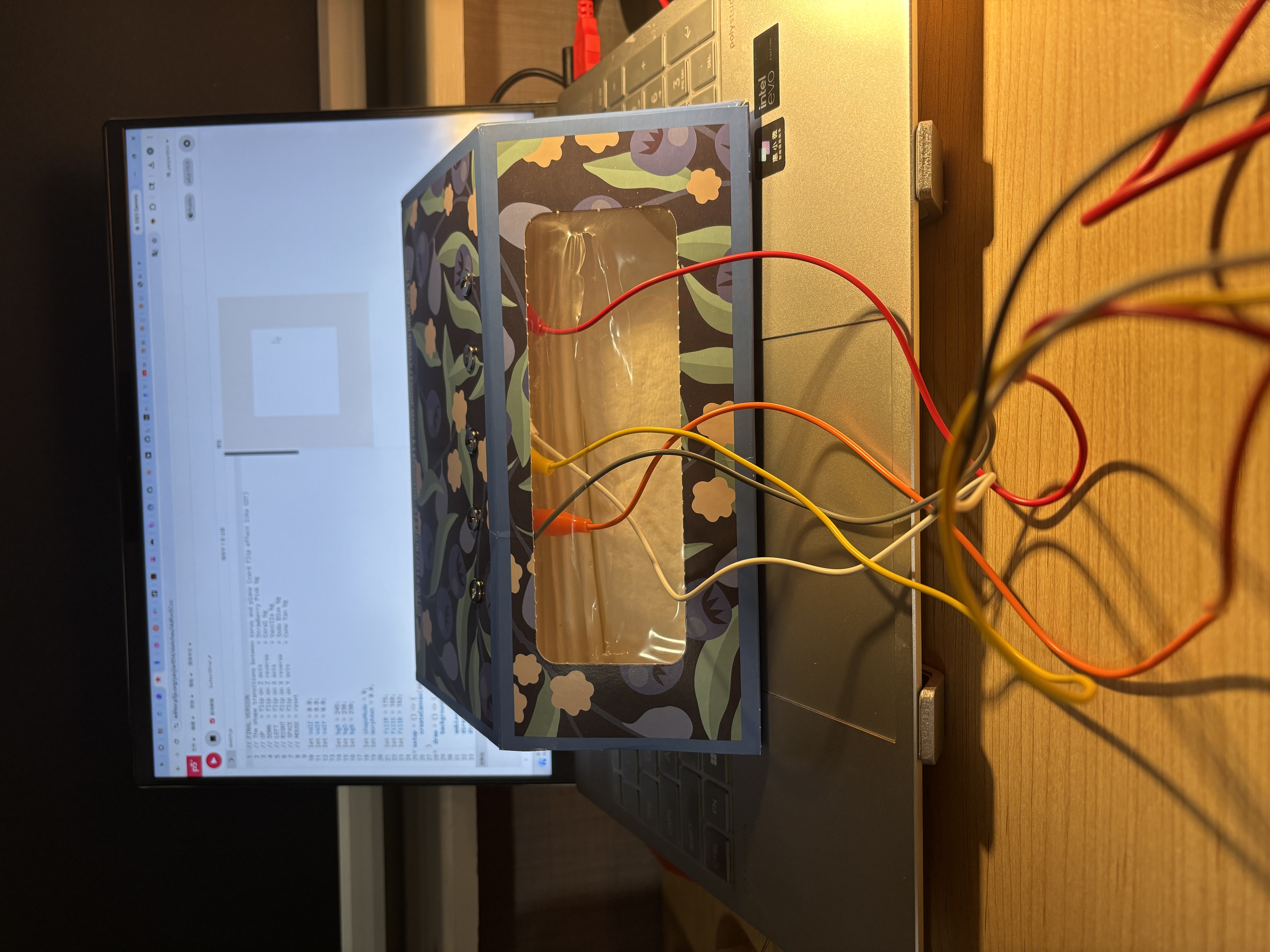
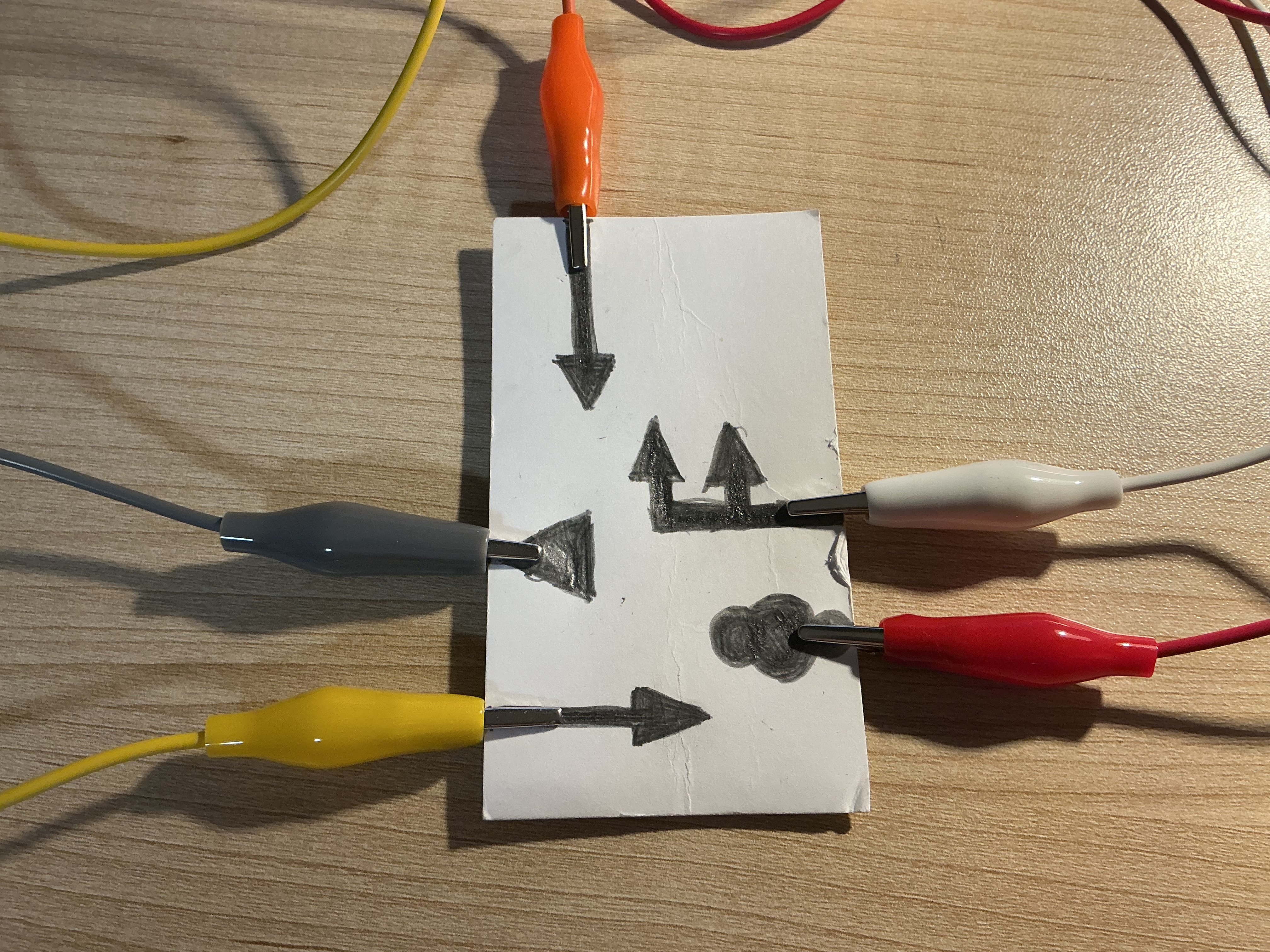
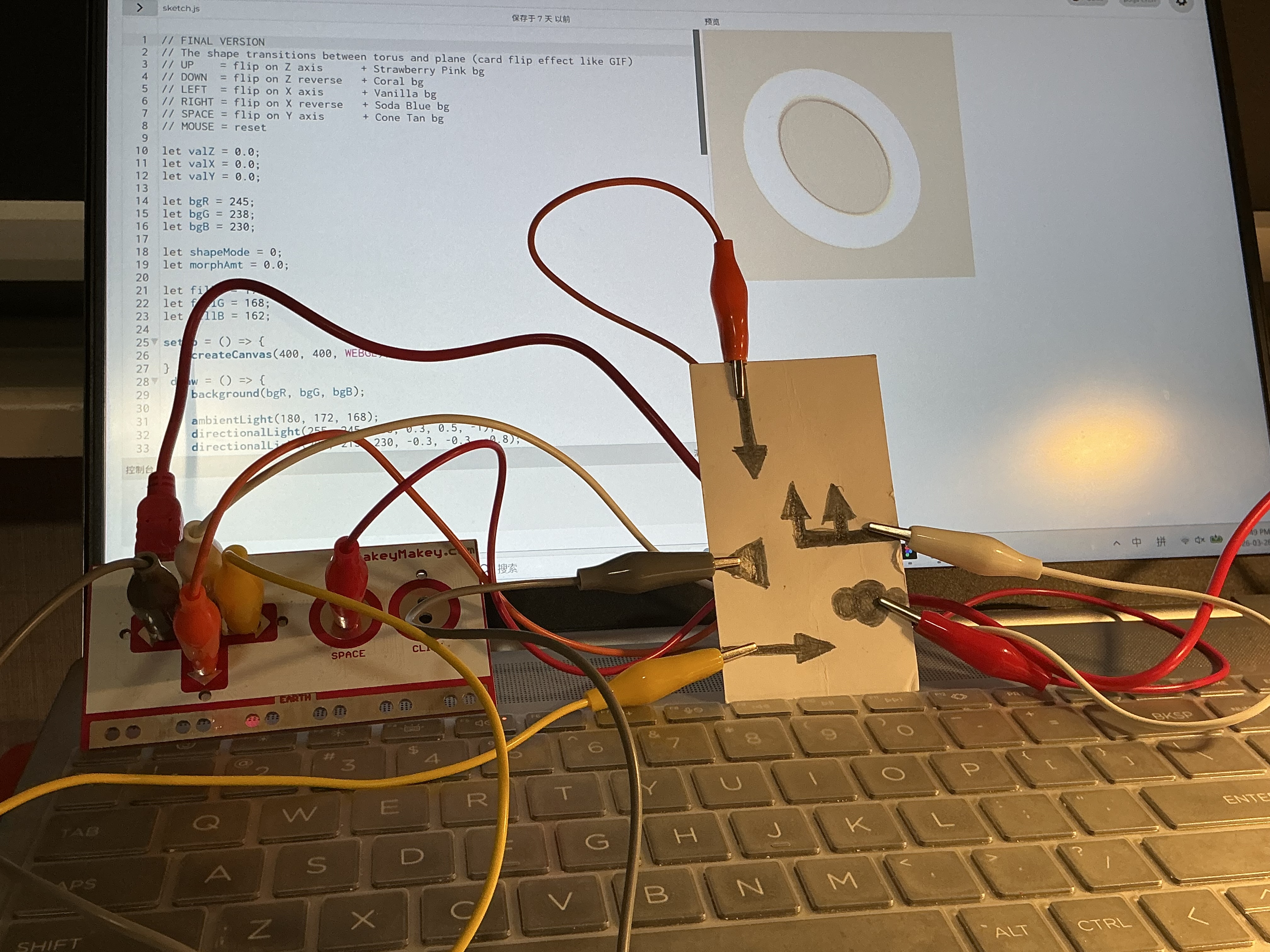
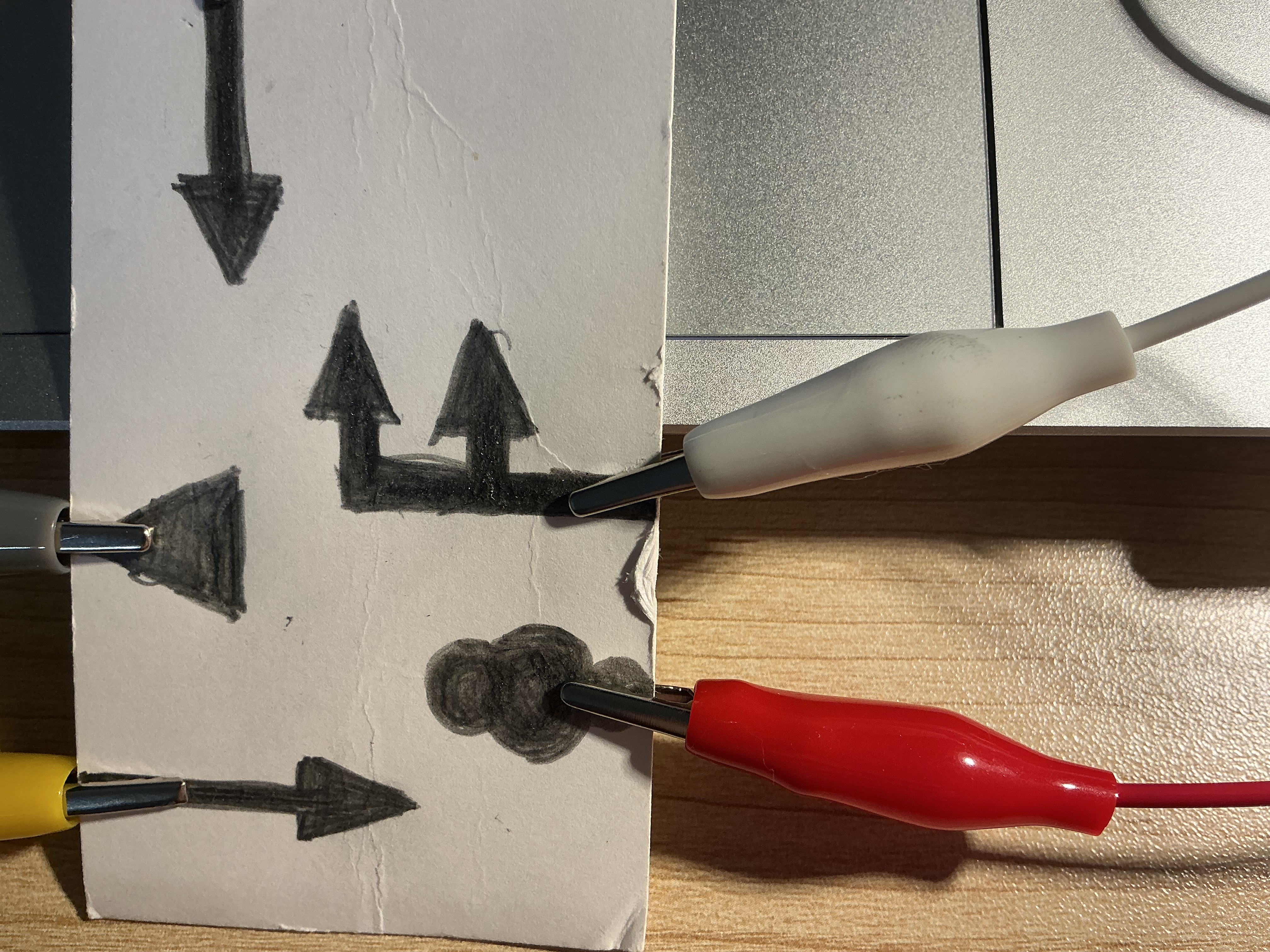
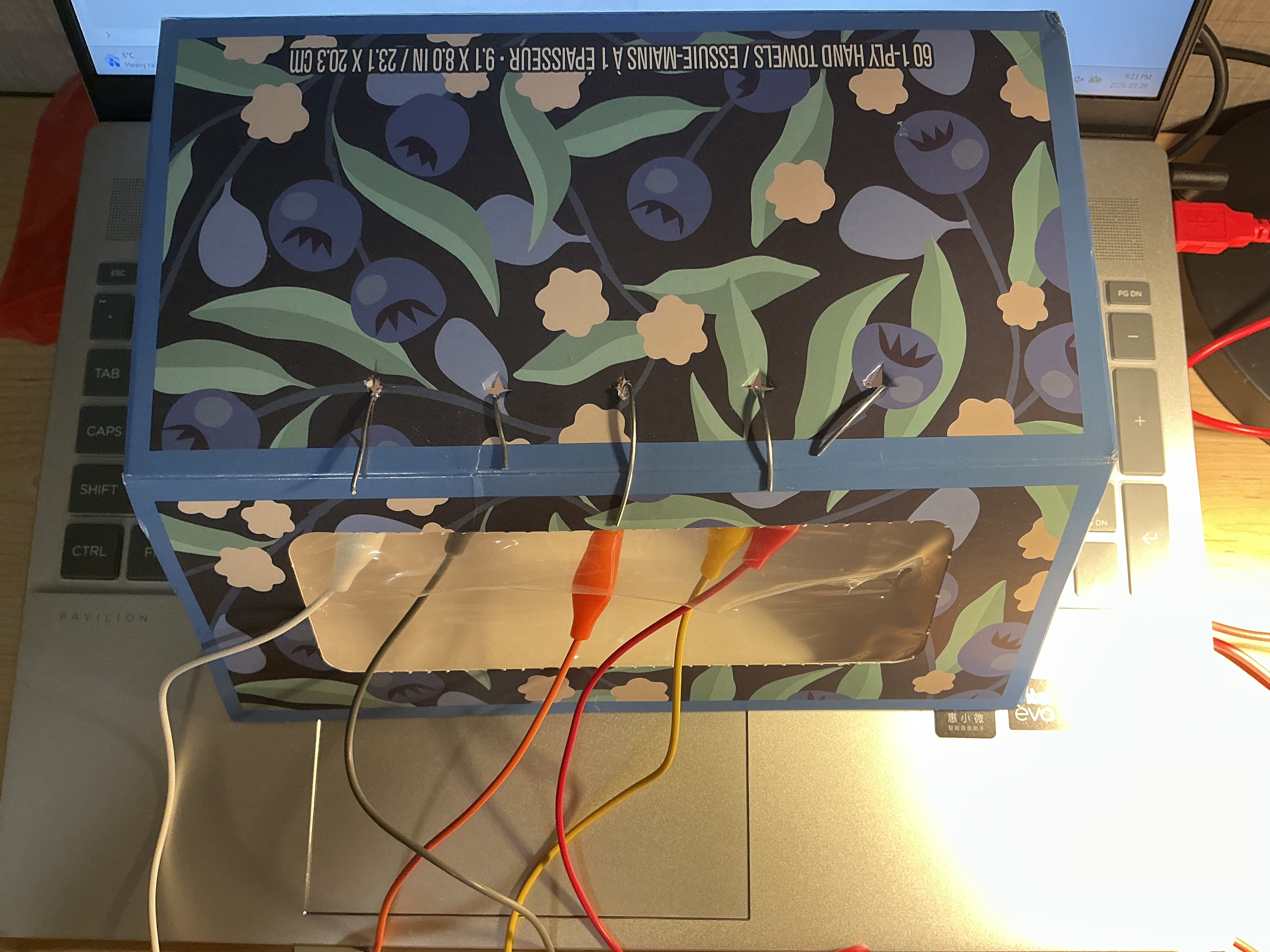
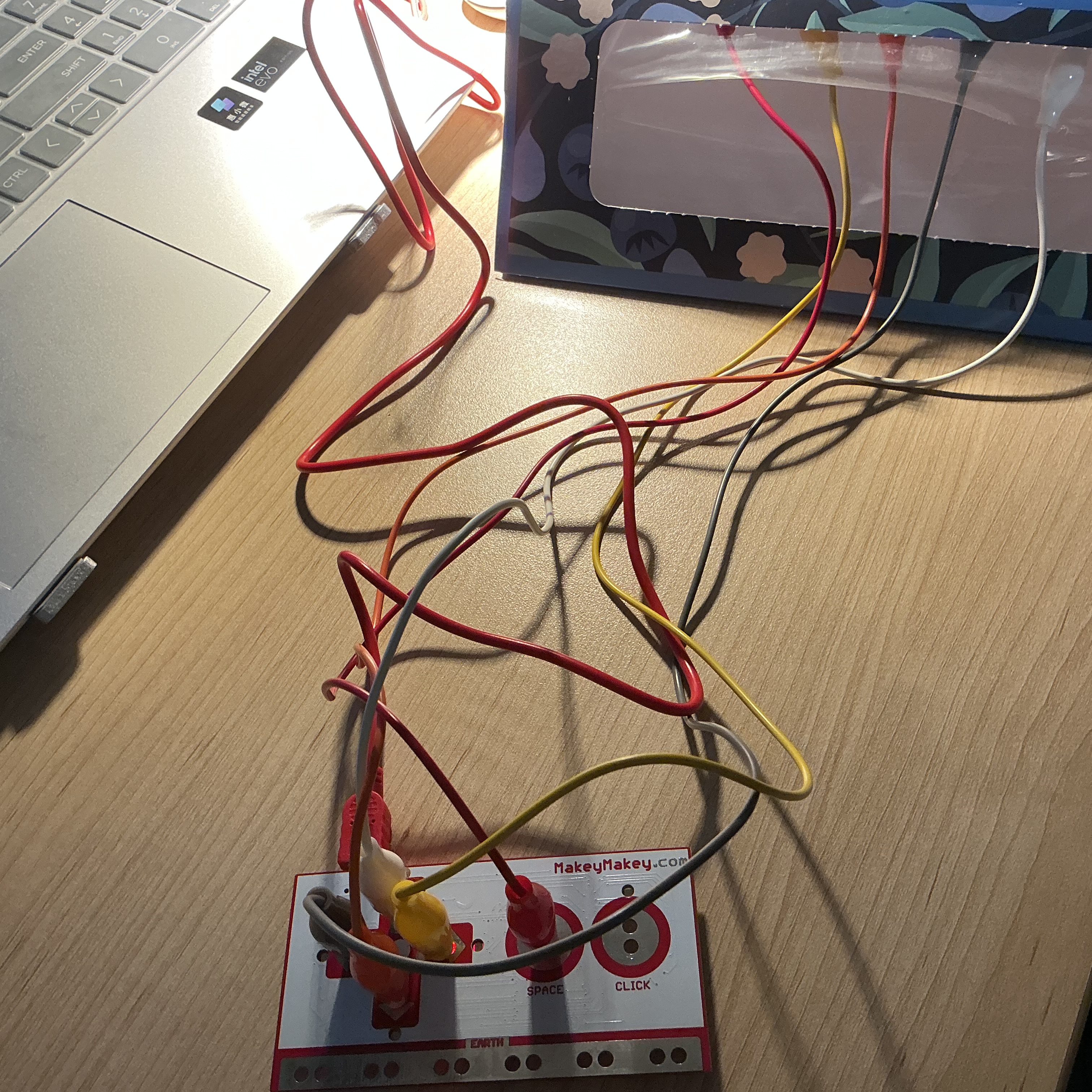
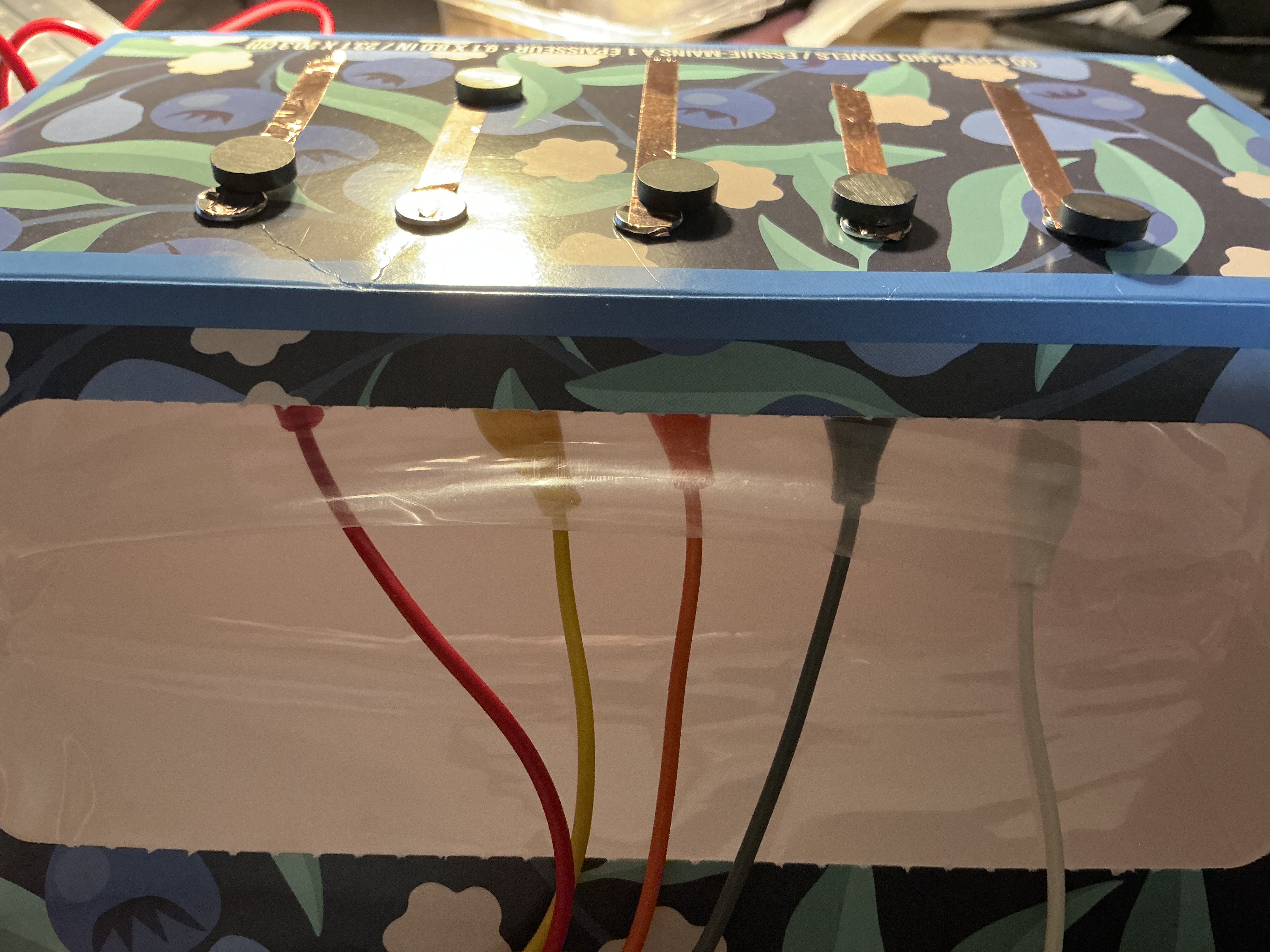
Activity 1 established the five-key Makey Makey constraint as a design prompt — not a limitation — and proved the system was built for physical integration from the first sketch. Activity 2 built three physical fabrication prototypes (iron wire loops, pencil graphite cards, copper tape with magnets), each exploring a different conductive material and spatial relationship between the body and the interface. These two activities converged on a central finding: the most meaningful touch interactions are those that cannot be replicated by a keyboard or screen tap. The final project synthesizes both discoveries into a complete diagnostic experience. It goes beyond the activities by introducing a dedicated display screen as a second spatial layer, clinical medical labeling as a parallel information system, synthesized audio tuned to each organ system, and a public health awareness message triggered when participants recognize their own symptoms. The installation was published as a live web application and embedded into a hand-fabricated physical body-surrogate, making the digital and physical inseparable — diagnosis requires both.